Friday, September 6, 2019

Welcome Back Friday Five!

Start of the Year Edition of the Friday Five


1. Start of the Year Checklists:  Most directions for Canvas Start of the Year can be found on your level's checklist. The middle school checklist is here and the high school checklist can be found here. Of course, email me, Cara Gurysh at cgurysh@pennridge.org with any questions or for assistance.

2. Grade Passback/PTP: With the conversion to PowerTeacher Pro there are new set-up steps that must be followed if you want to utilize grade passback. The directions can be found here. Keep in mind that you must set up your grading Categories in PTP first.

3. PowerSchool/Canvas: Canvas and PowerSchool "speak" to each other each night. If a student's schedule changes, it takes 24 hours for the change to be reflected in Canvas. This means if a student is placed into your period 2 class on Monday during period 1, the student will not have your course until Tuesday. If for some reason the course does not appear the next day, please contact Cara Gurysh at cgurysh@pennridge.org.

4. LockDown Browser: We have the LockDown Browser available for all staff and students 6-12. This browser creates a secure testing environment in Canvas. Using it is simple. Here are the directions. NOTE: The directions reference LockDown Monitor, we do not have this camera feature.  Look for sessions on the browser soon.

5. PUBLISH Your Courses: Don't forget that students will not be able to see your courses until you hit Publish from your course homepage.

Bonus: Parent Observer Account Directions can be found under the Parents Tab on each school's website.  A teacher can generate a pairing code for a parent if needed. Here are directions.

Thursday, June 13, 2019

Last month's Friday Five hopefully eased some concerns you had about next year. This edition will assist you in preparing for 19-20 by offering some tips and reminders regarding wrapping up the year in Canvas:


1. You will have editing access to your current (Year Long; Semester 2) courses until June 30th. 

Remember you will NOT lose content, After June 30th, you will need to move it to another course to edit it. 

2. After June 30thyour PowerSchool courses will turn to “read only.” This means all of the content stays, but you won't be able to edit anything in the course. You are able to move content into a new course and regain full editing capabilities in that new course!

3. If you would like to work on your courses prior to the 19-20 PowerSchool roll-over (late July), you may move any of your content into a new course shell (click here for directions on creating a course shell and here for directions on how to copy content from a Canvas Course into that shell)I suggest you select "Remove all Dates" when copying. Once the PowerSchool roll-over occurs, you will have your official courses for the year and can import content into those courses from either a shell course or your 18-19 courses. 

4. Please contact me if you have any questions regarding Canvas year end! Thank you all for your hard work with Canvas this year. 

5. There is a lot of tech information coming out. Below are links to general information that has been sent so far.

  1. Single Sign-On Information
  2. PowerSchool Roll-Over Info
  3. End of Year Tech Annoucement
  4. Teacher Laptop Collection Form
  5. HS EOY Tech Support
  6. MS EOY Tech Support

If you have not done so, please make sure that you have signed up for June PD sessions in OTS by the end of the day Friday, 6/14.

Friday, May 17, 2019

Yes, Your Work WILL NOT Be Lost

This Friday Five helps answer some FAQs from the last few weeks. 

Happy Reading.

Don't forget to look for the Easter Egg.

Questions:

1. "Will I have to re-create everything I have put in Canvas this year, next year?"

NO! You will be able to copy all of the material from your courses this year into the PowerSchool created shells for the 19-20 School Year. The shells will be available once PowerSchool is rolled over from this school year to next school year. This typically happens in mid-July. 


2. "Where did my assignment go? I lost it when I deleted the date from the calendar?"

If you delete an assignment (quiz, discussion, etc.) from the calendar, you are deleting the item. If you just want to remove an item with a due date from the calendar, but preserve the item, edit the item and remove the due date or unpublish it. The item will then be saved, but won't be visible on students' calendars. 

3. "I accidentally deleted a (Quiz, Discussion, Assignment, Page). How do I get it back?"


Go to the home page of the course that you lost the item in. Add /undelete to the URL for the course. A list of deleted items will appear and select "Restore" for the item that you want to recover. (Kudos to Jon Edwards, HS English, for being the first to figure this out!)

4. "I need to give a student another attempt on a quiz. Is there a way to give another chance to just one student?"

The easist way is to go to "Moderate This Quiz" when in the editting area of the quiz.Then click on the Pencil icon next to the student's entry. From here you will be able to add an extra attempt. Here are complete direcitons. 


5. "Why should I go to 21st Century Learning Night?

Because it is the biggest celebration of learning in the district. Each year over 800 people attend to see examples of innovative teaching and learning that happens everyday within our district. With over 50 teacher exhibits, you are sure to be amazed and inspired by what you see. The first five people to email me a smiling emoji will get a Canvas prize. For more information about the event, check out the webiste.  


21stCLN is on Tuesday, May 28 from 6:30-8:30 at Pennridge High School. 

Thursday, April 11, 2019

Speed Up Speedgrader with Annotate Pro


Do you every feel like this when providing feedback to your students?

Image result for repetitive and redundant gif

You keep providing the same comment student after student.


This edition of the Friday Five introduces a Google Chrome Extension that allows you to more easily provide meaningful feedback on work collected in Canvas. The extension is called Annotate Pro. (Note: This extension is a "freemium" tool. This means it has a bunch of features that are free and others you can pay for. I am only highlighting free features.)


1. What is Annotate Pro?

Annotate Pro is a free extension that allows users to create comment banks that can be used when providing feedback in Speedgrader, Discussions and on Rubrics in Canvas. It can also be used with Google Docs and Word, but this post will focus on Canvas. 

2. How does it work? 

The 2 minute video below demonstrates the use of Annotate Pro in Speedgrader.


3. Can I create my own comments?

Yes, each user can create their own library of comments. Comments can include text and links to supplemental resources. You can even download your comments so you can share them with a colleague. 

4. Will this tool limit personalization of comments for students?

When providing feedback, you often are providing similar comments to students. Once you place a saved comment on a student's work, you can still edit the comment and add additional, specific information. You do not loose your ability to create custom comments while utilizing Annotate Pro.

5. How do I add an extension to Chrome?

  1. Go to the Chrome Store
  2. Search for Annotate Pro
  3. Click Add to Chrome
  4. Accept Permissions
  5. The Extension will now run when in Google Docs or Canvas
Please contact me at cgurysh@pennridge.org if you would like help exploring this tool.

Reminder- 21st Century Learning Night is Tuesday, May 28.
More info can be found here


Friday, March 8, 2019

Duplicating in Canvas- One Teacher's Practice

The last edition of the Friday Five featured ways to duplicate items in Canvas. To follow-up I have asked high school English teacher, Carol Ressler, to share how she is using the process in her classes. 

This year, Carol teamed up with Physical Education teacher, Roberta Simmons for Peer Coaching. Roberta teaches the high school's cyber PE course. Roberta has shared some strategies she employs for her online class and Carol is adapting them for her face-to-face courses.

CG: How do you leverage the module structure in Canvas to organize your courses?

CR: Although I had been using the Module structure to organize my course content for my students, I wasn’t really leveraging the modules for instructional purposes.  Through working with Roberta, I developed a means to implement self-paced tutorials revolving around various topics.


Module Template-Click to see larger


CG:  Could you briefly describe how you are using module duplication to improve your workflow?

CR: The module duplication feature allows me to quickly replicate the structure of the weekly tutorial.    I have a module that is a “template.” (Shown Above)  I then duplicate the template and edit the copy and due dates as I see fit to create a “new” module. (Shown Below)  My initial effort to create an instructional module took about an hour until I was satisfied with flow and content of the module. The second week I did this, it only took me 10 minutes to edit the duplicated module structure for the entire week.   In addition, I can also import this template into other courses I teach.  Next year, I will have all of these instructional modules created.  I will just have to edit due dates/times from year to year.


Instructional Module-Click to see larger


CG: How do you think your module structure benefits students?

CR: My students benefit from this instructional practice in several ways.   The students who are proficient in the skill are able to complete the task without “waiting” for the remainder of the class to catch up.   Students who are not proficient are able to read teacher feedback and re-submit the task until the point where they demonstrate mastery.  Once students receive constructive feedback, they are talking through the concepts with other students.  On-task interaction and peer-to-peer instruction is increasing. 

CG: What tips do you have for someone who wants to implement your technique?

CR: The module feature does not allow you to duplicate if the module contains a quiz or LTI (ex: Google Cloud-Based or 365 Cloud-Based) assignment, so make sure your template does not contain them.  When you edit the duplicated template, you can simply add in a quiz in this “new” module.

CG: What do you hope to try next to further leverage the capabilities of Modules in Canvas?

CR: After I refine this practice a bit more, I hope to eventually use the Mastery Paths function of Canvas to create a more individualized learning experience.   Students who need more detailed instruction or additional practice will be directed towards activities that meet their needs, and students who demonstrate proficiency can work on a activities that provides a greater challenge or extend their learning.


SAVE THE DATE: 21st Century Learning Night is 5/28/19. Watch your email for more information. 


Thursday, February 21, 2019

Copying in Canvas: Assignment, Module,Event, Assignment, From Commons

Scribe At Work

Recently, teachers have been asking about copying items within a Canvas Course. Duplicating quizzes, assignments, and modules helps improve teacher workflow. This week's Friday Five features ways to copy different items within a single course in Canvas. 

How to Copy....


1. A Quiz- Do you need to copy a quiz to make a differentiated version?  The steps found here explain how to copy a quiz within a course. The same process can be used for copying into another course, just make sure to start in the course you would like the quiz copy to be in. 

2. A Module- Perhaps you would like to duplicate a module structure or a complete module. You can duplicate a module (if it does not contain a quiz or LTI assignment) by simply clicking on (1) the three dots to the left of a module title and then selecting (2) Duplicate. Here are full directions.


3. A Calendar Event- Are you having a special event in your class over multiple days? Create the event once and then use the Duplicate feature (found under More Options) to repeat the event for a subsequent number of days. You can even have Canvas automatically number the events for you.Here are full directions. 


4. An Assignment or A Discussion- Just like we saw with Modules, you can easily duplicate an assignment or discussion by clicking on the three dots next to the assignment and then selecting duplicate.


5. A Resource from Commons-  If you have explored Commons in the past, you saw that to fully preview a resource, you had to import it into a shell class. To make this easier you can now preview items in Commons before you copy them into a course. Here are full directions on how to do this and below is an example of how you can preview an assignment that was shared. Curious about Commons? Here is information on what Commons is and describes how it can be used to share items to other teachers in Pennridge.


Friday, January 11, 2019

End of Semester/End Of Quarter


It is time for our annual post on the semester switch. This post has important information on the End of Q2 and the First Semester. If you have any questions about copying materials for semester two, please contact me. I will be happy to set up an appointment with you.

1. Grading For Q2:  All teachers will be able to continue to grade Quarter 2 work in Canvas until February 8th. While you will be able to grade work from Q2 until February 8th, please keep your level's grading timeline in mind. If you teach a full-year course and collected something with a Q2 due date, but plan on using the assignment as a Q3 grade, make sure to change the due date to a date within Q3 so that you can still grade and provide feedback on the assignment and push it to the appropriate quarter in PowerSchool. You can change the due date after you have collected the work. 

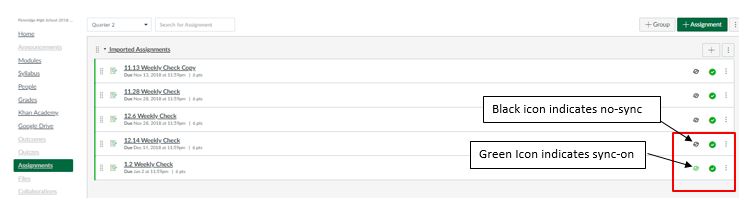
2. Turn-Off Sync for Old Assignments: To avoid any confusion, make sure to go into your Assignments in Canvas and de-select the SIS icon indicated in the picture below. This will prevent any grade changes made in PowerSchool from being over-ridden if you run a sync from Canvas. 


Click on Image to See Larger
3. Copy Course Materials: If you teach the same course second semester, you can easily copy all of your Semester 1 content to your new course. Here are directions on how to do this. Reminders:

  • If you used announcements, don't copy these
  • Select "Remove All Dates" so you start with undated content
  • Anything you copy will be copied in the same state that is in the original course (i.e., published or unpublished - you can always unpublish before or after copying)


4. Publish Your Semester 2 Courses: You must publish your second semester courses just like you did semester one. Here are directions.

5. Start of the Year Checklists: The High School and Middle School Start of the Year Checklists are great resources for the new semester

Have you and your students updated Chrome recently? Here are directions on how to make sure you are running the most recent version.

Thursday, November 29, 2018

Canvas Updates and Computer Science Education Week

This week's edition features 4 quick pieces of information regarding Canvas and an all-in-1 resource on how you can celebrate Computer Science Education week in your classroom, regardless of your subject area.

 Updated/Reminders of Canvas Features  


1. 🆕Student To-Do List- Students will now see that they only have a To-Do List on their dashboards. The Coming Up list has been eliminated. Students must remove announcements, non- collected assignment due dates, and events from their dashboards themselves. In the image to the right, the Lab 2 and Day 4 skills review will not automatically clear from the To-Do list since they are events/non-collected work.


2. 🛎️Calendar- Just a reminder, the calendar should be used to list assignment due dates, homework reminders, and key course events. Putting a daily agenda on the calendar creates clutter and confusion. This is especially true considering the  changes to the To-Do list described above. One great alternative to using a calendar event or assignment for daily lesson information is to use a whole class or section specific announcementHere are directions (make sure to see the area where you select which sections).


3. 🔜Course Cards- Beginning 12/8, teachers and students will have the ability to rearrange their course cards to an order of their liking. Users can simply pick up a course card and drag it into a position of their choice. See it in action here.

4. ℹ️ Canvas, There is an App for That!- Remember, if any Canvas iOS or Android app is being used, the user must search for Pennridge in the app via our url: pennridge.instructure.com

(Note: A Special Student Dashboard Announcement will be made soon informing students of these updates.)

Celebrate Computer Science Education Week Dec 3-9, 2018


5. 💻Computer Science For All: Hour of Code is a fantastic resource to introduce yourself and your students to coding. They have a wide-variety of hour long tutorials related to coding that have meaningful, interdisciplinary connections. For example, students in a social studies class can create a Map Tour App. In a science class, students can code to create a Public Service Announcement regarding plastic waste. Keep the website in mind for the week before winter break. You are likely to find a worthwhile, curriculum-based activity that will help you fight the inevitable pre-break distraction!

If you need help implementing any of these ideas, do not hesitate to reach out!
Cara
cgurysh@pennridge.org


Thursday, November 1, 2018

End of Marking Period- Canvas/PowerSchool Reminders

Since many of you are wrapping up marking period grades, I thought it would be a good idea to offer some reminders about passing grades from Canvas to PowerSchool. Here are 5 quick tips.

Canvas grade book. Terms
Note: Your Canvas grade book is aligned to our course terms. Assignments dated after November 7 will appear in your Q2 section of your grade book. The image to the right shows a completed course. Quarters will appear in the drop-down menu as we reach them. The drop-down menu allows you to toggle between quarters. Teachers can continue to grade a completed quarter's work in Canvas until three weeks past the quarter end.


1.📏Length of Assignment/Quiz Names📏

Remember names cannot be more than 30 characters and cannot duplicate an assignment name that already exists in PowerSchool.

2. 📅Due Date📅

Assignments must have a due date in order to sync properly

3. 🔁Sync/Resync🔁

You can sync and resync an assignment as many times as you like, however, keep in mind that if you change a grade in PowerSchool grade book and don't change the grade in Canvas, the Canvas grade will override the PowerSchool grade. To avoid this, be mindful of your workflow. Either turn of the sync for an assignment when done, or always change the grade in both places.

4. 😕 Which Assignments Are Set to Sync?😕

If you are unsure of which assignments/quizzes you have set to sync, go to the Assignments tab in your course. Any assignment/quiz that has the gear icon  (shown below) set to Green (rather than black) is set to pass back to PowerSchool the next time you hit the sync button in Canvas.

Click on Image to See Larger- Assignment listing, 5 assignments not set to sync, last assignment is set to sync

5. ✔️Always Double-Check✔️


Make sure to check PowerSchool to see that your grades came over as expected. Typically, grades pass back in a matter of minutes, but it can take up to an hour. Often the grade column comes over first and then the grades. If you ever have an issue, the best thing to do is to just try again. If you still have a problem, do not hesitate to reach out to me.

For everything you need to know about Grade Pass Back, explore this Folder of Resources.

Thursday, October 18, 2018

"Twitter-Style" Chat in Canvas and How to Make Modules More 😊

In our last edition, we saw how Discussions can be used to help students develop as Knowledge Constructors. This week highlights how one teacher is helping her students develop as Creative Communicators and Digital Citizens through Canvas Discussions.

Canvas Twitter-Style Chat


1. Melissa Osmun, reading teacher at Central Middle School, and her students have been participating in a "Twitter-Style" Chat using Canvas Discussions. (If you are unfamiliar with Twitter Chats, check out this comprehensive guide to Twitter created by a personal Twitter Favorite of mine- @cybraryman1)
Click on Image to see Larger- See Tweet here


2. Melissa's method: Melissa creates a Discussion for her class and then creates three replies to the Discussion. Each reply is a question. Students are then instructed to reply to two questions, giving students choice.

3. Benefits for the Students: While there are many benefits, adding online discussions to your tool kit provides an opportunity for  students to have time to process their ideas, makes their thinking visible to other students, and requires all students to be involved in the discussion. The online discussion feature is always a great way to give a voice to a student who may be more reserved in the whole class setting.

4. Benefits for the Teacher: Melissa can make sure that all students are involved in the Discussion and can provide specific feedback within the Discussion or through Speedgrader. Students responses are grouped together in Speedgrader which makes reviewing a snap for teachers.

And Now...just because it is fun and because I got the idea from Twitter,

5. Add Emoticons to your Module Titles to provide an element for visual discrimination and  🎉 fun 🎉. You can copy emojis from a ton of places including emojipedia.org and then place the graphic into your Module titleDestiny Beck, high school English teacher, added graphics to modules in her 9th grade English class.

Click On Image to See Larger


Thursday, October 4, 2018

Canvas As A Medium for Art

Knowledge Constructors in Advanced Art

Art and canvas makes sense, but what about art and Canvas? One of the  ISTE Standards for Students is for students to be Knowledge Constructors. Very simply put, this means students utilize various digital tools to develop their own understanding about ideas, events, or issues. They can use this knowledge to inform others, make connections, and draw conclusions. 

This week's Friday Five features Sarah Moos' use of Canvas to help her students become Knowledge Constructors

CG: Could you briefly describe the assignment?

SM: Students were examining the work of Edouard Manet. They were asked to critique two of his paintings and discuss how his style is considered impressionistic.  

CG: What was your learning goal for your students?

SM: My goal was to have students become more familiar with the work of Edouard Manet and look at his work in terms of how he influenced and help develop the impressionism style.  My goal was to have students look closely at the subject, style, color palette, brush strokes and mood of his work in order to create an evaluation.

CG: How did utilizing Canvas help your students reach that goal and how did it help you evaluate their learning?

Click on Image to Enlarge
SM: Students were able to quickly access the National Gallery of Art, where they were able to read background information about Manet and the particular painting they were studying. They also had the  ability to zoom into the painting. From there they were able to use Canvas to record their thoughts in an organized manner, including the painting they were critiquing. With ease, I was able to see the painting they were referring to and evaluate their critique. The assignment also allowed students to gather thoughts prior to a class discussion.


CG: Do you plan on doing this kind of assignment in the future? Would you change anything?

SM: I used the Assignment feature in Canvas for this assignment. I would like to begin to have students do similar assignments using the Discussion feature. This will allow students to see each other's work which will broaden the learning experience for all. 


Image Source: Manet, Woman with Cat


Some Timely Reminders

Middle School Start of the Year Checklist High School Start of the Year Checklist How to Push Grades to PTP Canvas Credentials: what y...