Ryan Wallace, like all great social studies teachers, can't help but pick up reading materials along his travels. Recently, on a field trip with FBLA to Bucks County Community College, Ryan picked up the student newspaper. Was he longing for his college years, feeling nostalgia for the printed press, or lured by the lead story? It was clearly the story, "The In's and Out's of Canvas." Channeling his inner Ed Johnson (if you are too new to our faculty to get this reference, ask one of us older folks), Ryan passed the article on to me! It focuses on the ease students have tracking their course progress when professors are utilizing Canvas.
Inspired by the article (thank you Ryan!) and some recent FAQS, this Friday Five is a list of tips you can share with your students to help them better utilize the interface. These tips are also being shared with students via their “Class of” course!
1. Calendar from the Classroom Homepage: Students can gain direct access to their course calendar from the homepage of the individual course. This makes focusing on just one class easier. Screenshot credit to Roberta Simmons!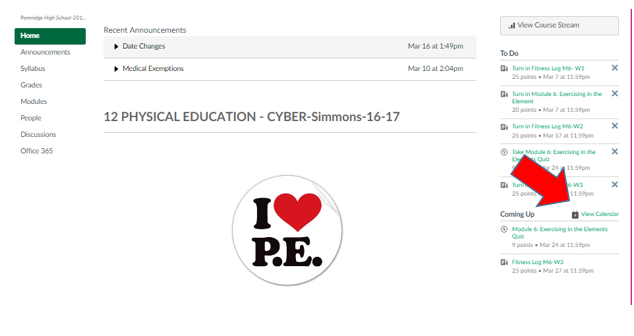 .
.
.
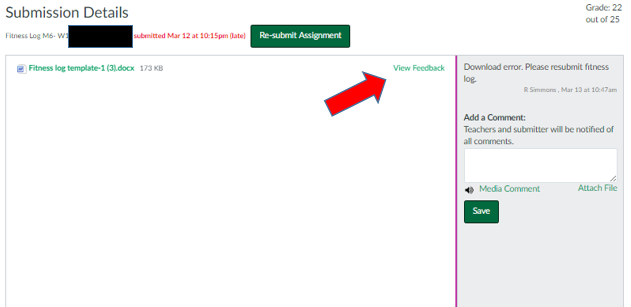
2. Specific Feedback on Assignments: Students can see detailed feedback on an assignment in the by clicking on the View Feedback Button from the submission details page. Below is an image of the page and button to press. Linked here are full directions.
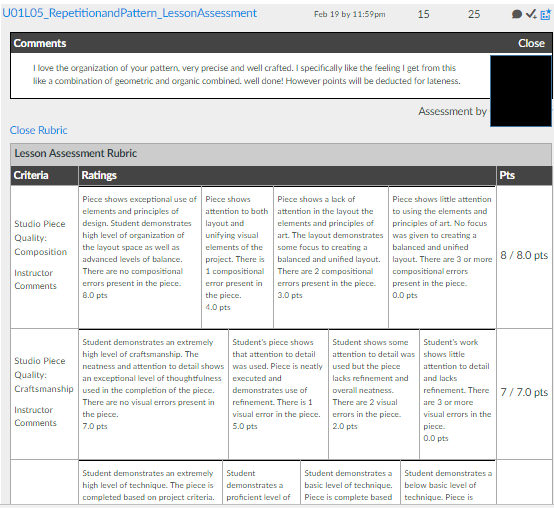
3. General Comments on An Assignment: Students can also see general comments and rubric details from the Grades link in course navigation. Make sure you have Grades accessible in your course navigation! Below is a snapshot of what they see and linked here are directions on how to access this information.
4. To Do and Coming Up Lists: These lists give students (and teachers) a quick glimpse into their courses. From the Dashboard, the list will include items from all courses. From a course homepage, the list will only include information for that course. Remember, the To-Do list includes items with a due date in the next seven days. The Coming Up list includes assignments and events that are coming up in the next seven days. For more info check out this resource. Screenshot credit to Heidi Kulik!

5. Notifications: It is important to remind students that they can receive notifications from Canvas via text or email. Most students were shown this when they picked up their laptops, but it is worth reminding students of this helpful feature. Linked here is info on how to set-up Canvas notifications.
BONUS: SAVE THE DATE! 21st Century Learning Night is Tuesday, May 30th. Check out our new website. More details to come!
Have a great weekend everyone!


