Showing posts with label Best Practices. Show all posts

Thursday, October 18, 2018

"Twitter-Style" Chat in Canvas and How to Make Modules More 😊

In our last edition, we saw how Discussions can be used to help students develop as Knowledge Constructors. This week highlights how one teacher is helping her students develop as Creative Communicators and Digital Citizens through Canvas Discussions.

Canvas Twitter-Style Chat


1. Melissa Osmun, reading teacher at Central Middle School, and her students have been participating in a "Twitter-Style" Chat using Canvas Discussions. (If you are unfamiliar with Twitter Chats, check out this comprehensive guide to Twitter created by a personal Twitter Favorite of mine- @cybraryman1)
Click on Image to see Larger- See Tweet here


2. Melissa's method: Melissa creates a Discussion for her class and then creates three replies to the Discussion. Each reply is a question. Students are then instructed to reply to two questions, giving students choice.

3. Benefits for the Students: While there are many benefits, adding online discussions to your tool kit provides an opportunity for  students to have time to process their ideas, makes their thinking visible to other students, and requires all students to be involved in the discussion. The online discussion feature is always a great way to give a voice to a student who may be more reserved in the whole class setting.

4. Benefits for the Teacher: Melissa can make sure that all students are involved in the Discussion and can provide specific feedback within the Discussion or through Speedgrader. Students responses are grouped together in Speedgrader which makes reviewing a snap for teachers.

And Now...just because it is fun and because I got the idea from Twitter,

5. Add Emoticons to your Module Titles to provide an element for visual discrimination and  🎉 fun ðŸŽ‰. You can copy emojis from a ton of places including emojipedia.org and then place the graphic into your Module titleDestiny Beck, high school English teacher, added graphics to modules in her 9th grade English class.

Click On Image to See Larger


Friday, September 28, 2018

Canvas Organizational Tips and Dealing with Small Fonts in Windows 10

Welcome to Fall! 

September is quickly coming to an end and we are all beginning to settle into the new school year. As we work to develop routines with our students (and for ourselves), I want to share four important Canvas organizational tips and re-share a tip that will help those who have been struggling with small fonts and icons on their laptop screens.

Beginning next week, the Friday Five will move away from beginning of the year procedural and update information about Canvas and will include teacher features. Each teacher feature will reflect how Canvas and other tools are being used to support the ISTE Standards for Students. 


Add To Do Details
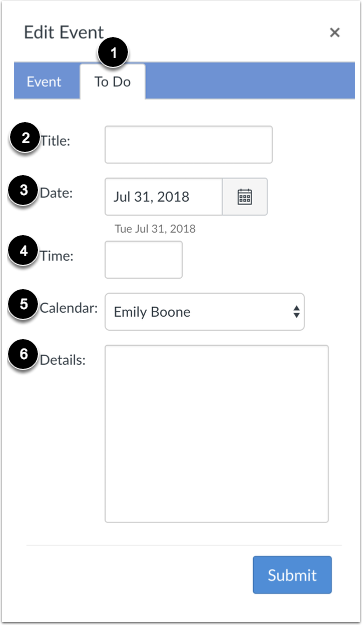
1. A New Canvas Calendar Feature: You may have noticed that when you are adding an item to a Course Calendar that you now have the option of adding a To-Do task. This new feature gives users the ability to add their own items to a calendar and is most useful for STUDENTS who want to add their own reminders for a class. For example, as the teacher, you might place an Event or Assignment on your course calendar that says "Chapter 1 Test" for the date the class will be taking the test. The STUDENTS can add "Study for Chapter 1 Test" to their personal TO-DO List for your course. Here are handy directions for students.


2. Inbox in Canvas: I am sure you have experienced a time when a student emailed you at your pennridge.us account and not your pennridge.org account. While it is possible to have pennridge.us emails forwarded to your pennridge.org account (Click Here for directions), instructing students to message you through the Canvas Inbox may be better. When a student sends you a message through Canvas, it will automatically go to your pennridge.org email. You can then respond directly from your email. This features avoids missed emails and creates a more convenient workflow for you.


3. Observers in Your Canvas Courses: Parents can create observer accounts to view their students' courses. Directions on how a parent creates an observer account can be found here. To see who is "Observing" in your courses, go to People in your course navigation. Next, select Observer from the drop-down menu to see a list of individuals. 


4. Canvas? There is an app for that: Increasingly, students and teachers have been asking how to utilize either the Canvas Student App, Teacher App, or Parent App on their smartphones or tablets. When utilizing any of the Canvas Apps the user needs to locate our instance of Canvas. To do this they must search for pennridge.instructure.com. 


5. Enlarging Size of Windows 10 Text: If you are struggling with the size of the font and icons on your laptop please follow the directions found in this link. The attached directions show you how to customize your display settings. 


Friday, May 11, 2018

Canvas- Teacher Appreciation Week!


Happy Friday and Happy Teacher Appreciation Week!

Our friends at Canvas have shared a special homepage template to say thank you to all Canvas Teachers! 

This will be a great resource to tuck away and use when you begin to plan your courses for next year!

To access the free homepage template, follow the directions found here. 

This template provides:

  1. A Homepage with editable course title, course banner and "welcome" text placeholder
  2. Three customizable buttons: About Your Teacher | Class Resources | Learning Modules
  3. Directions on how to modify template buttons and banner
  4. "Welcome to Class" student module with content page templates: "About Your Teacher" and "Class Resources"
  5. Finally, the first PHS teacher reader of this post who emails Cara Gurysh will receive a special Canvas gift!


FYI: Banner on top of this post was created with Canva....I LOVE Canva

Friday, April 13, 2018

21st Century Learning Night

Top 3 Reasons to Come to 21st Century Learning Night

 and 

2 Sneak Peeks!

This Friday Five is brought to you by the Thursday Three (Thank You Erin Reichert and Chris Brockman). To keep with the Five format I have added two sneak peeks! Make sure to read about Act 48 and How to register to present! Questions, see/email me (Cara), Erin, or Chris!

1.  Last year we had over 40 faculty presenters, over 800 attendees, and it is one of the top events the Curriculum Office organizes each year!  

In addition, we have raffles and door prizes for all presenters and guests!

2.  Many teachers invite students who "run" the table and to help showcase the topic.  Those students feel honored to be asked to come and share their work, as well as gaining a feeling of community.   Typically their parents feel very honored and happy to bring them on the night of the event.

In addition, have your considered signing up with another teacher?  By doing so, this allows you to take turns at the table, which allows you time to explore the other exhibits!

3.  As a spectator, you're able to get ideas to engage your students and may see something that you have "never thought of before".   

 In addition, your students (past and present) will love seeing you roaming the exhibits!   As a spectator, consider bringing your own family with you! 

4. First Sneak Peek- Jeremy Friedman and The Daily Ramble Crew

The team will be giving special tours of their new studio! See first hand how the Ramble students put together the daily show and special segments. Perhaps you will be featured on an upcoming episode! .

5. Second Sneak Peek- Ignite Talks- Brooke Burgy and the Humanities Team (Angeli, Brown, Flanagan, Russell)

Teachers and students will be showcasing students' individual research through Ignite Presentations. Brooke's 11th grade English classes prepared talks as n entry activity to their study of Anthem . Some of her students presented live and other used Screencastify to record their talks.  Humanities students are preparing to share Ignite-style presentations of their DaVinci Day Projects.

*And if all that is not enough- teachers get Act 48 hours, as well as 4 hours of pay for signing up as a presenter!  (More information in regards to these 2 items will come out in May after final teacher registrations are complete!)

If you are able to present, please fill in the form by May 1st. 

Click here for the 21st Century Learning Night website to see pictures and videos from the past, and to see some of what's in store for this year's event! Follow us on Twitter @psd_21cenlearn

Friday, January 5, 2018

Things to Consider in the New Year!

As we enter the new year, this Friday Five is 5 observations made regarding our Canvas use and a consideration for each...


1. Quizzes left open...

Each time you make a quiz you can set the Available From and To time and you can set a time limit. If you do not set these items, students may gain some unfair "advantages." For example, they could begin a quiz before you want them to and they can leave the quiz open as long as they want in order to take it "at their leisure".  For security purposes, it is a best practice to set a time limit and to take advantage of the time restrictions. (UPDATE: Please also note that you can set a password (access code) for a quiz. The password can be changed between classes. For more info, scroll down to "Set Quiz Restrictions" in the link above.) Also, refer to the October 6, 2017 Friday Five for a post on using Quiz Logs. Using and sharing this feature with students is a great deterrent.


2. Assignments that have no due dates and then...


somewhere else in Canvas (either in the daily agenda or an Event on the Calendar) there are directions telling the student to complete the assignment by a certain date. This practice creates more work for both the teacher and the student. If an Assignment has a listed due date, the course calendar automatically will have the due date and assignment details added. The assignment will show up on the student's To Do List. Also, remember that you can differentiate due dates on assignments in the Assignment settings. This will put the correct due date for each period (section) on each student's calendar based on the period s/he is in!  Want to reference the assignment on a Page, in a Module, or in an Announcement? No problem, just link the assignment to any of these features. 


3. Reluctance to collect work in Canvas...

Speegrader, speedgrader, speedgrader! If you haven't collected work in Canvas, do yourself a favor and make a New Year's resolution to try! With Speedgrader you can quickly zip through work and leave quick, specific feedback. Then by sync your assignment score to PowerSchool, you will truly improve your workflow. 


4. Missing Modules...


The Year 2 goal for Canvas use is organizing materials in Modules. Refer to the Year 2 Goals Module in the professional learning course for more details, tips, and examples. The beauty of Modules is that they allow for all the different components of Canvas and your course to be neatly organized by unit.  This not only benefits your students but also creates a great course template for you to use in the next school year.

5. Unused items left in Course Navigation...


Canvas can help you provide your students with easy access to course materials, information, and resources. Why not create a cleaner interface by hiding unused features found in Course Navigation? If you aren't using an item such as Collaborations, Chat, and Attendance (to name a few), hide them by following these directions. Also, remember my previous posts about the value of hiding Pages and Files!


Friday, October 13, 2017

Three (More) On Phones,One On Canvas, One On PowerPoint

Hopefully these phone tips never stop because being provided with three items by Diane Miller is making the Friday Five so much easier to write. Once again this Friday Five will include three on phones and two other timely tips!


Phones 


1. How do I check voicemail from outside of the district?

  1. Dial 215-453-2737
  2. Enter your ID Number followed by # (Your ID is your extension [222XXX]
  3. Enter you PIN followed by #
  4. Follow the prompts to retrieve new or saved messages or to reach set-up options
2. How do parents reach your voicemail box?

  1. Call into the main school number (HS: 215-453-6944) -or-
  2. Call 215-453-2765 which is the District-wide Faculty Voicemail Call-in Line
  3. From Either number, the caller will be prompted to enter your mailbox number or will be directed to search the staff directory

3. What if I want to learn even more about our new phones?

  1. Click here for the Cisco Self-Care Portal Quick Reference Guide
  2. Use your district username and password to log-in to the portal
  3. While much can be done right from your phone, but  the portal gives you a nice interface to accomplish basic phone tasks like:

    • Reseting Your Voicemail PIN (once you have gone through the initial set-up)
    • Forwarding All Calls
    • Setting up Phone Contacts for your personal directory
    • Changing Ringtones

The next 2 tips have to do with utilizing touchscreens for faculty and students with touch devices. 

Canvas


4. How can I use my touch-enabled device in Canvas?

SpeedGrader is a huge time-saver and you don't need to have a touch-enabled device to take advantage of it awesome features. However, if you are someone who likes to "write" on student's papers and have a touch device, this beta (meaning Canvas isn't sure that it is perfect yet) feature option may be great for you. Below is a super quick video of my attempts~note I have bad handwriting to begin with and screens do it no favors!


PowerPoint


5. How do I encourage students (9th-11th graders!) to take notes on your PowerPoint Presentations?

Students can "write" directly onto PowerPoint presentations you provide for them via Canvas. This is a great way for students to stay engaged in a presentation and create notes that help them elaborate upon the information you present, record examples you share, and practice steps you model. Below is a super-quick video demonstrating how to utilize the drawing feature in PowerPoint and here is a Microsoft Guide- Check out the shape conversion...awesome! We will explore this further during the October 24th Tuesday Ten!


Upcoming Tuesday Tens:
10/17- Screen Casting Options
10/24- Student Note taking with Touchscreens 
11/14- Skype in The Classroom


Friday, February 24, 2017

EdCamp Follow-Up


Friday Five- EdCamp Follow-Up

The high school's second EdCamp PD day was a great day of professional collaboration. This installment of the Friday Five is dedicated to highlighting and building upon some of the great conversation that occurred. 

1. Discussion Feature in Canvas:  As of my last count, 173 entries were made into the Discussion thread that was started on Canvas. This tool allowed people, who did not see each other during various sessions, to share insights and ideas with one another. It also created a valuable  resource for those who were not present Friday morning. Finally, it acts as a record of the day and continues to serve as a space for ongoing dialogue.  If you haven't used this tool in your classroom, give it a try. It is an effective way to further discussion on timely topics. Many people have asked me if it is difficult to grade a discussion. SpeedGrader groups a student's responses together. This offers an easy way to evaluate the number and quality of student responses. Below is a screenshot of what this looks like in SpeedGrader. Thanks Nicole Gordienko for allowing me to share your responses!


Check Out This Great Resource on creating valuable online discussions.


2. Google Integration:   Another FAQ was about how I embedded the EdCamp Grid  into a Canvas Page. While this has long been possible (click here for directions), the new Google LTI makes this process even simpler. If you are interested in having the new Live Beta (this means it is not perfect and is being tested broadly to fine tune) of the new LTI added to your course, email or see me. This will allow you to create cloud based assignments for students. Canvas and Google will make a copy of a Google Doc automatically for a student. The student can work on the assignment right in Canvas and then submit with a single click. Here is more info on this type of assignment. Thank you to Carol Ressler and Destiny Beck for piloting it with their classes!

3. PBL/Best Practices:  Many sessions got major kudos in the online discussion, but one in particular that received a lot of attention was Frank Flanagan and Lisa Russell's session on Project Based Learning. Frank created a Smore of resources for PBL. This session, and the resources shared,  couples nicely with the discussion facilitated by Deb Cotner-Davis and Ray Ott. As we finish out our second decade of the 21st century, we need to continue to find ways to make schools relevant for our student's futures. The ideas shared in these sessions help to do this.


4. Twitter for PD and PR:  There was a lively discussion of how Twitter can be used to further professional learning and to create a positive image of our school. Lisa Maderic offered a great suggestion of adding a reminder to your phone to send a Tweet once a week. Imagine if each teacher tweeted one positive example of the great things going on at PHS to @PennridgeHS and @pennridgesd! The more we share the wonderful things being done in our classes with the community, the more support we will receive.  Here is a blog post Scott Hegen created on the subject.


5.Technology and the Tactile:  Finally, I am so sorry I missed Eric Kehs and Matt Simkins' session that incorporated kinesthetic activities and tech tools. The supervisors are reporting an increased demand for shaving cream.  Everyone who attended had a great time and was reminded that technology is one of the many tools that can be used to create a meaningful and effective learning experience for students. Eric and Matt shared great examples and here is an article about some other effective strategies to get students moving in your classroom.

.

Friday, December 16, 2016

One More Week Until Winter Break!

We are in the home stretch. This Powtoons Video offers some suggestions on how to keep your students engaged and learning this next week!

Featured ideas include:


Friday, December 9, 2016

Using Twitter to fight the Winter Blues!

Friday Five 12/9/16

With the rush of the holidays, the reality that arctic air will soon be visiting, and the excitement of the students over the coming break, it can be easy to get into a December funk. I was feeling this way as I was trying to plan this Friday Five. Instead of skipping this week, I decided to search for some inspiration!  

My go-to source for inspiration from edu-rock stars is Twitter. So I sent out the following Tweet:


Of course, there are dangers in venturing onto social media. Once you log-in you can quickly find yourself lost in a series of clicks and end up on some inane PopSugar article like this one. Fortunately, I use Twitter only as a Professional Learning Community, so I was safe!  


Low and behold...I got some advice…. I got some inspiration….I was reminded that great reward comes from connecting with inspiring educators from across the globe.


So thank you Twittersphere for helping me get back in the groove!  


Friday Five Tips and the Tweets that Inspired Them!


1. It is all about the Badges

Gamification is a trend being implemented in and outside of the classroom. Those of you who completed the Canvas Beginners and Canvas Intermediate Courses were awarded badges. Consider adding Badges to your courses. Here is an overview article of how you can use badges. I am working on a PD course on how to build badges into your Canvas Courses. More information to follow!


2. You can earn a Microsoft Badge and Act 48!

Chris B. sent out an email last Friday alerting all faculty of this opportunity being offered for PSD Teachers. Here is what he wrote: “In order to help teachers satisfy their Act 48 requirements, an internet course through the Microsoft Education Community entitled “Microsoft in Education” has been posted to OTS.  This course reviews the basic operation of Office 365 and how it can be utilized in the classroom.  Following completion of this course 3 hours of Act 48 will be awarded.  Please use this link ,which directs you to the in district OTS system, if you are interested in this opportunity.”


3. More on Discussions!


We have explored Discussions in the past. But what does “focused” vs “threaded” mean exactly? Focused discussions ask students to reflect upon a single idea. For example, “Who is to blame for Romeo and Juliet’s deaths?”.  A threaded discussion is used to explore more complex ideas that may naturally break into sub-topics. For example, if the question is “Was the South’s secession justified?”, the discussion could quickly become threaded based upon political, economic, or cultural distinctions. This threaded discussion could be revisited throughout the course of a unit, while the focused example may be used a single assignment.  


4. Video may have killed the radio star, but video enlivens learning!  

Embedding videos into your Canvas Course is easy thanks to the integration of YouTube and the ease to upload your own video creations! But there are some important things to keep in mind. Here are some great tips on incorporating video into your classes.


5. Fast Track Videos 

Want to learn more about Canvas? Canvas has a series of videos designed to quickly give you key information or skills to utilize some of Canvas’ most popular features. We used a few in our training courses. The complete list of videos can be found here.

Friday, November 18, 2016

11.18.16- Daily Agenda, Calendar, Community, To Do List, Log-ons

1. Daily Agenda-  While we are all using Canvas in our classes and implementing the four goals, we do have great flexibility in how we accomplish these tasks. Staci L is utilizing the Redirect Tool discussed in the 10.14 Friday Five to help her students easily access her Daily Agenda. She created a Course Navigation link to a Canvas Page she created called Daily Agenda. You can see what it looks like here.  Now her students can click on the link in her course navigation and be taken directly to information on each day’s activities. Brilliant idea and one that I will add to the  Ways to Post the Daily Agenda list.
2. To Turn In or To Complete, That is the Question-  Canvas is constantly improving and responding to user feedback. Beginning this Saturday, students’ To Do lists will be changing slightly. Now assignments that are “No Points” or “No Submission”  will be preceded with the word “Complete” and assignments that need to be submitted will be preceded with the words “Turn In”. This will make it clearer to students what type of action they need to take on an assignment created by a teacher. You can see what this looks like here.
3. Calendars- While the universal calendar for courses is extremely helpful there is a word of caution that needs to be shared with teachers and students alike.  Only 10 calendars can display on the calendar grid at one time. Many students may be managing more than 10 calendars as more and more clubs are utilizing Canvas Courses. Please remind students to make sure that they are mindful of which calendars are “clicked” on. Here is more information on how to filter calendars.
4. Canvas Community Groups- Are you interested in connected with other educators who are utilizing Canvas in their classrooms? There are hundreds of user groups that you can join to learn more about how teachers in your content area or with your interests are implementing Canvas and 21st century learning in their classrooms. Click here for information about these groups.
5. Student Log-in Directions-  Many students are forgetting how to log-in to Canvas when they have a loaner laptop. Please remind students that student log-in directions can be found under the Students Tab on the High School Homepage. I have included them here for your convenience. Teachers can find student login credentials on PowerSchool. Click on the Backpack icon for the period the student is in. Next select the student and finally select Logins from the drop down menu. Canvas credentials are the student’s computer username followed by the same @tag as your Canvas Credential. The password is their network password.

Friday, October 28, 2016

10.28.16- CK-12, Nearpod, OpenEd, Graph Builder, and More


EduApps Edition-

What is EduAppsCenter.com?  EduApps is a collection of educational applications that can be integrated into learning management systems. Some are free and some require subscriptions or licenses. Feel free to browse the Apps and let me know if there are any you would like to have added to your course or to a test course (I recommend doing that first so you can test the value of the integration).

Why Embed or Integrate Apps?  Embedding Apps helps to keep your students in one location and discourage wandering behaviors! If an app is built into your Canvas course students are not having to go elsewhere to complete assignments or find resources which further reinforces Canvas as the central hub of their learning.

Below is a partial list of Apps that have been installed or, in the case of Nearpod, could be installed on our instance. Like all products, there are some great resources included in these integrations and there are some that are less than great. Make sure to thoroughly vet any resource that you decide to use with a class.  

  1. CK-12- I know this tool is used by some science and math teacher. You can know add “high quality, free, teacher created and vetted STEM content without ever leaving” Canvas. Here are CK-12 created instructions on how to embed a CK-12 resource into a Canvas assignment.
  2. NearpodIf you have a Gold membership to Nearpod you can embed your Nearpod lessons directly into a Canvas assignment. Some of the benefits of this include: fewer clicks for students and the ability to maintain Canvas as your central classroom hub. If you have a Gold membership and would like me to install the integration in your courses let me know. The second part of this resource explains how to embed a Nearpod lesson into Canvas.
  3. OpenEd- OpenEd has “the largest FREE K-12 resource library with videos, assessments, games and homework assignments, all built from quality publishers and sorted by effectiveness.”  Many of these resources can be assigned directly into Canvas.
  4. Graph Builder- This app has been added to the list of external tools available within the Rich Content Editor. To access it, select Graph Builder from  the V drop down menu found in the Rich Content Editor within all aspects of Canvas- Pages, Quizzes, Assignments, Discussions. It can be used by teachers or students to “define graphs based on simple or complex equations and chart them dynamically.”
  5. Can any tools that aren’t apps be integrated? Yes, look at last week’s Friday Five to see how to include links in course navigation. You can also check to see if a resource has a built in ability to share to an LMS. For example, one of my favorites, EdPuzzle, provides HTML code that can be added to a page or assignment in Canvas. I will place an example in the Friday Five Module in the Professional Learning Course as an example.

Friday, September 30, 2016

9.30.16- Turnitin, Bookmarks, Student Log-In, Parent Access, Grades

This week’s quick Canvas tips and updates!

  1. turnitin.com- Turnitin.com has been activated system wide. You can now collect assignments through Canvas but have them run through Turnitin.com’s plagiarism checker. You can grade the assignment via Turnitin or Canvas’ Speedgrader. The grade can then be pushed to PowerSchool from Canvas. Here are  some basic instructions. I would be happy to help anyone who wants to test out this great integration. If you do not have a Turnitin.com account contact Hilary C.

  1. Grades- We all Learn!- On the Beginning of the Year Checklist I suggested hiding grades in your course navigation. Since them I have been able to disable grade totals from that feature. This means students cannot see their current average grade in a course within Canvas- they must do so in PowerSchool, the gradebook of record. What they do get to see, if you give them access, is a clear list of all assignments with due dates, whether they have submitted or not, and any feedback given by the teacher. So in short, it is a good idea to have Grades available in your course navigation!

  1. Bookmarks- I have had several students come to me not being able to log-in. The problem has been their bookmarks. It is vital that a Canvas bookmark be made for pennridge.instrucuture.com only. If a student bookmarks with any additional characters after the .com the bookmark will eventually go bad. If a student can’t log in, have them close Chrome, reopen and then type in the address (or use the link on the HS homepage). If they still have problems, send them my way!

  1. Canvas Log-in Info for Students- This information has been added to the Student section on the high school website.

  1. Parent Access: We are ready to provide parents with directions on how to create observer accounts. By as early as the end of next week your students’ parents will be able to view your course materials, calendars, and announcements. Remember parents have view only status and cannot see Quiz questions, Discussions, or any Student Replies. For a complete list of what observers can and cannot do look  Teachers will be told when the directions are sent to parents.


Friday, September 23, 2016

9.23.16-Apps, Speedgrader, Groups, Course Images

Five tips of the week…
  1. Did you know there is a Canvas App? Here are directions for iOS and for Android. Once downloaded use pennridge.instructure.com to search for the school.

  1. Did you also know that there is a Canvas SpeedGrader App?  Here is a document with information on the iOS and Android versions.

  1. Speaking of SpeedGrader, have you tried it out yet?  Checkout this introduction to this time saving feature of Canvas. You may never grade by hand again!

  1. FAQ- How do I use Groups in my courses? Groups are smaller versions of your course which students can use to collaborate on a group project or assignment. They are great to use for projects, especially when you are collecting one assignment from the whole group. Here is a document that includes introductory info on how to use Groups in your course.
  2. Finally, under the category of not important, but fun….Look at the Professional Learning Course on your Dashboard. Notice anything different? You can now add images to your course tiles. Students still have the ability to control the color overlay so they can differentiate between your course and other courses on their calendar. Here are directions on how to add a picture to your course tiles.

Some Timely Reminders

Middle School Start of the Year Checklist High School Start of the Year Checklist How to Push Grades to PTP Canvas Credentials: what y...