Showing posts with label Modules. Show all posts

Thursday, February 21, 2019

Copying in Canvas: Assignment, Module,Event, Assignment, From Commons

Scribe At Work

Recently, teachers have been asking about copying items within a Canvas Course. Duplicating quizzes, assignments, and modules helps improve teacher workflow. This week's Friday Five features ways to copy different items within a single course in Canvas. 

How to Copy....


1. A Quiz- Do you need to copy a quiz to make a differentiated version?  The steps found here explain how to copy a quiz within a course. The same process can be used for copying into another course, just make sure to start in the course you would like the quiz copy to be in. 

2. A Module- Perhaps you would like to duplicate a module structure or a complete module. You can duplicate a module (if it does not contain a quiz or LTI assignment) by simply clicking on (1) the three dots to the left of a module title and then selecting (2) Duplicate. Here are full directions.


3. A Calendar Event- Are you having a special event in your class over multiple days? Create the event once and then use the Duplicate feature (found under More Options) to repeat the event for a subsequent number of days. You can even have Canvas automatically number the events for you.Here are full directions. 


4. An Assignment or A Discussion- Just like we saw with Modules, you can easily duplicate an assignment or discussion by clicking on the three dots next to the assignment and then selecting duplicate.


5. A Resource from Commons-  If you have explored Commons in the past, you saw that to fully preview a resource, you had to import it into a shell class. To make this easier you can now preview items in Commons before you copy them into a course. Here are full directions on how to do this and below is an example of how you can preview an assignment that was shared. Curious about Commons? Here is information on what Commons is and describes how it can be used to share items to other teachers in Pennridge.


Thursday, October 18, 2018

"Twitter-Style" Chat in Canvas and How to Make Modules More 😊

In our last edition, we saw how Discussions can be used to help students develop as Knowledge Constructors. This week highlights how one teacher is helping her students develop as Creative Communicators and Digital Citizens through Canvas Discussions.

Canvas Twitter-Style Chat


1. Melissa Osmun, reading teacher at Central Middle School, and her students have been participating in a "Twitter-Style" Chat using Canvas Discussions. (If you are unfamiliar with Twitter Chats, check out this comprehensive guide to Twitter created by a personal Twitter Favorite of mine- @cybraryman1)
Click on Image to see Larger- See Tweet here


2. Melissa's method: Melissa creates a Discussion for her class and then creates three replies to the Discussion. Each reply is a question. Students are then instructed to reply to two questions, giving students choice.

3. Benefits for the Students: While there are many benefits, adding online discussions to your tool kit provides an opportunity for  students to have time to process their ideas, makes their thinking visible to other students, and requires all students to be involved in the discussion. The online discussion feature is always a great way to give a voice to a student who may be more reserved in the whole class setting.

4. Benefits for the Teacher: Melissa can make sure that all students are involved in the Discussion and can provide specific feedback within the Discussion or through Speedgrader. Students responses are grouped together in Speedgrader which makes reviewing a snap for teachers.

And Now...just because it is fun and because I got the idea from Twitter,

5. Add Emoticons to your Module Titles to provide an element for visual discrimination and  🎉 fun ðŸŽ‰. You can copy emojis from a ton of places including emojipedia.org and then place the graphic into your Module title. Destiny Beck, high school English teacher, added graphics to modules in her 9th grade English class.

Click On Image to See Larger


Friday, January 5, 2018

Things to Consider in the New Year!

As we enter the new year, this Friday Five is 5 observations made regarding our Canvas use and a consideration for each...


1. Quizzes left open...

Each time you make a quiz you can set the Available From and To time and you can set a time limit. If you do not set these items, students may gain some unfair "advantages." For example, they could begin a quiz before you want them to and they can leave the quiz open as long as they want in order to take it "at their leisure".  For security purposes, it is a best practice to set a time limit and to take advantage of the time restrictions. (UPDATE: Please also note that you can set a password (access code) for a quiz. The password can be changed between classes. For more info, scroll down to "Set Quiz Restrictions" in the link above.) Also, refer to the October 6, 2017 Friday Five for a post on using Quiz Logs. Using and sharing this feature with students is a great deterrent.


2. Assignments that have no due dates and then...


somewhere else in Canvas (either in the daily agenda or an Event on the Calendar) there are directions telling the student to complete the assignment by a certain date. This practice creates more work for both the teacher and the student. If an Assignment has a listed due date, the course calendar automatically will have the due date and assignment details added. The assignment will show up on the student's To Do List. Also, remember that you can differentiate due dates on assignments in the Assignment settings. This will put the correct due date for each period (section) on each student's calendar based on the period s/he is in!  Want to reference the assignment on a Page, in a Module, or in an Announcement? No problem, just link the assignment to any of these features. 


3. Reluctance to collect work in Canvas...

Speegrader, speedgrader, speedgrader! If you haven't collected work in Canvas, do yourself a favor and make a New Year's resolution to try! With Speedgrader you can quickly zip through work and leave quick, specific feedback. Then by sync your assignment score to PowerSchool, you will truly improve your workflow. 


4. Missing Modules...


The Year 2 goal for Canvas use is organizing materials in Modules. Refer to the Year 2 Goals Module in the professional learning course for more details, tips, and examples. The beauty of Modules is that they allow for all the different components of Canvas and your course to be neatly organized by unit.  This not only benefits your students but also creates a great course template for you to use in the next school year.

5. Unused items left in Course Navigation...


Canvas can help you provide your students with easy access to course materials, information, and resources. Why not create a cleaner interface by hiding unused features found in Course Navigation? If you aren't using an item such as Collaborations, Chat, and Attendance (to name a few), hide them by following these directions. Also, remember my previous posts about the value of hiding Pages and Files!


Friday, September 15, 2017


Now that we are all back in the groove, it is time for a new Friday Five of quick tips regarding Canvas. This edition of the Friday Five includes 3 tips worth repeating, 1 fun tip, and 1 HUGE (well maybe not huge, but hopefully helpful!) announcement.


Three Tips Worth Repeating!


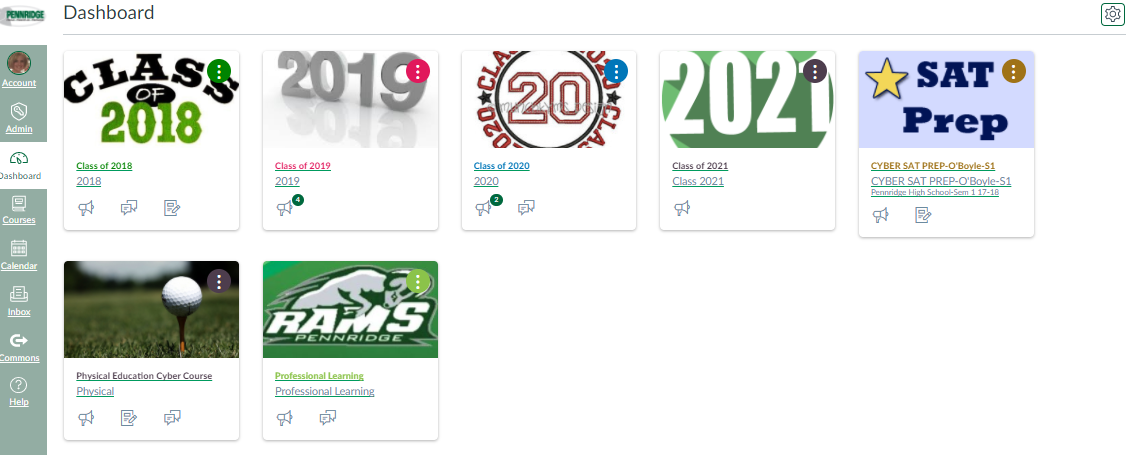
1. Hiding Unneeded Courses on Your Dashboard:  If you haven’t hidden courses you are likely finding your dashboard very cluttered. When your schedule is transferred from PowerSchool to Canvas, Canvas can not distinguish between a “real class” and your prep or lunch period. To hide the course shells that are for your prep or duty, follow these steps:
  • Go to Courses in your Green Navigation bar, then select All Courses
  • Click on the Star (make them orange) next to the the Courses you want to see on your dashboard
  • Return to your Dashboard and see just the classes you want to be able to access quickly
2. Renaming Sections:  Your course sections (periods) come across with PowerSchool coding rather than period numbers. To rename your sections to a more user-friendly format, follow these steps:
  • Go into a course with multiple periods (sections)
  • Click on Settings in the Course navigation, then select sections from the top of the screen
  • Click the Pencil icon next to the section you want to rename 
  • Type in a more friendly name (like period number) and hit enter. Repeat this step for all sections
3. Modules:  Utilizing Modules is the new goal for this year. Remember that if you get in the habit of adding all materials to your course through the Module interface, your course will be naturally organized for your students and for you. When utilizing Modules remember these three things:
  • If a Module is locked, students can’t get to items inside it, even if the items are published
  • When using Modules, you do not need to (and don’t want to) leave Files and Pages accessible for student access. They can get your files and pages through your Modules
  • If you haven’t done so, complete the Module on Modules in the Professional Learning Course for Module Examples, Tips, and Tricks!


Fun Tip


4. This Fun Tip is a discovery first made by Carol Ressler! This tip is totally about aesthetics, but if you have added course images to your course cards (tiles on your dashboard), you can take away the color overlay for a crisper view of your images. To do this, click on the gear icon found on the upper right of your dashboard and then deselect “Color Overlay”. This is a user setting, so feel free to wow your students by showing them how to do this on their dashboards.

Before


After


Huge Announcement


5. To further support you all in your Canvas use, in addition to Friday Fives, I am now going to offer Tuesday Tens. On select Tuesdays, I will be hosting ten minute quick overviews of key features in Canvas. These live,voluntary events will take place in the CAP Room (307) on select Tuesdays from 2:20-2:30. (I won't kick anyone out who wants to stay longer!) All events will be listed on the Professional Learning Calendar in Canvas. No need to RSVP, just show up. The first events will be:

September 19: SpeedGrader: Get a quick introduction into the time saving features of SpeedGrader. You may never collect papers again!


September 26: Course and Section Naming: Learn how to customize your course names and section names. Other account settings will also be reviewed

October 3: Module Magic: Get help making your modules magical for you and your student. Modules make everything simpler.


Monday, August 28, 2017

Welcome Back- Year Two of Canvas

Welcome Back!


Just a Five quick pieces of information as we start Year Two of our Canvas implementation.


  1. Linked here is the start of the year checklist for Canvas. It is similar to the checklist I provided last year, but includes a few demonstration videos and some information on new features in Canvas.
  2. Please remember that there is a Module on Year Two goals in the Professional Learning Course. Many of you completed the module at the end of last year.  If you haven’t competed this, it would be helpful to do so as we begin Year Two with the following Canvas goals:
    •       Demonstrate Mastery of the Year One Goals (due dates on calendar, daily agenda,    upload handouts, use syllabus page)
    •  Utilize Modules for Course organization.
  3. If you are not enrolled in the professional learning course, please email me and I will add you right away!
  4. Please remember that student Canvas log-in credential information can be found under the “For Students” tab on the high school homepage and here. Teachers can see student log-in credentials by clicking on the backpack icon in PowerSchool, selecting the student’s last name and then selecting “logins” from the drop down menu.  Canvas usernames are the students’ computer username followed by @psd.pennridge.org and the password is their network password.
  5. I will be in the CAP room (307) most periods of the day this year. Feel free to stop on in whenever you need help with Canvas or other tech integration needs. There will be students in the room, but they are working on cyber coursework, so don’t feel like you are disrupting them!

Thursday, January 12, 2017

Semester Switch and Canvas Drop-In Sessions


Many of you teach semester courses. Below are some steps you are going to want to take as the first semester ends and the second semester begins.

  1. Grades in your First Semester Course-  You will be able to continue to grade work and push those grades to Powerschool (if you are utilizing the grade push) until January 31st. This corresponds with the grading timeline that Alice sent out. After January 31st you will have read-only access to your course material. This means you can see all of your assignments, files, discussions, student work, etc. but you can’t edit within the course. To edit the content you would need to copy it into a new course (see #2)!

  1. Copy Course content to New Semester Course- If you teach the same course second semester you can easily copy all of your Semester 1 content to your new course. Here are directions on how to do this.

  1. Semester Course Content Next Year-  You will also be able to copy any course content from a semester course (or Year Long Courses, too) into the PowerSchool created courses you will teach next year. Don’t worry- Your work first semester will not disappear!

  1. Don’t forget to Publish Your Semester Two Courses-  You must publish your second semester courses just like you did semester one. Here are directions.

  1. Semester 2 Try Something New!-  Please stop in and see me in room 307 if you would like to review how you have used Canvas in semester 1 and discuss ways to expand upon your use in Semester 2.  Things to consider: collecting assignments through Canvas, Discussions, Modules, GradeBook Push, Group Assignments. These suggestions will all be explored in the opportunity which follows.

Some Timely Reminders

Middle School Start of the Year Checklist High School Start of the Year Checklist How to Push Grades to PTP Canvas Credentials: what y...