Friday, October 13, 2017

Three (More) On Phones,One On Canvas, One On PowerPoint

Hopefully these phone tips never stop because being provided with three items by Diane Miller is making the Friday Five so much easier to write. Once again this Friday Five will include three on phones and two other timely tips!


Phones 


1. How do I check voicemail from outside of the district?

  1. Dial 215-453-2737
  2. Enter your ID Number followed by # (Your ID is your extension [222XXX]
  3. Enter you PIN followed by #
  4. Follow the prompts to retrieve new or saved messages or to reach set-up options
2. How do parents reach your voicemail box?

  1. Call into the main school number (HS: 215-453-6944) -or-
  2. Call 215-453-2765 which is the District-wide Faculty Voicemail Call-in Line
  3. From Either number, the caller will be prompted to enter your mailbox number or will be directed to search the staff directory

3. What if I want to learn even more about our new phones?

  1. Click here for the Cisco Self-Care Portal Quick Reference Guide
  2. Use your district username and password to log-in to the portal
  3. While much can be done right from your phone, but  the portal gives you a nice interface to accomplish basic phone tasks like:

    • Reseting Your Voicemail PIN (once you have gone through the initial set-up)
    • Forwarding All Calls
    • Setting up Phone Contacts for your personal directory
    • Changing Ringtones

The next 2 tips have to do with utilizing touchscreens for faculty and students with touch devices. 

Canvas


4. How can I use my touch-enabled device in Canvas?

SpeedGrader is a huge time-saver and you don't need to have a touch-enabled device to take advantage of it awesome features. However, if you are someone who likes to "write" on student's papers and have a touch device, this beta (meaning Canvas isn't sure that it is perfect yet) feature option may be great for you. Below is a super quick video of my attempts~note I have bad handwriting to begin with and screens do it no favors!


PowerPoint


5. How do I encourage students (9th-11th graders!) to take notes on your PowerPoint Presentations?

Students can "write" directly onto PowerPoint presentations you provide for them via Canvas. This is a great way for students to stay engaged in a presentation and create notes that help them elaborate upon the information you present, record examples you share, and practice steps you model. Below is a super-quick video demonstrating how to utilize the drawing feature in PowerPoint and here is a Microsoft Guide- Check out the shape conversion...awesome! We will explore this further during the October 24th Tuesday Ten!


Upcoming Tuesday Tens:
10/17- Screen Casting Options
10/24- Student Note taking with Touchscreens 
11/14- Skype in The Classroom


Friday, October 6, 2017

Two On Canvas; Three On Phones

This Friday Five includes information on two exciting Canvas updates and a link to a new blog introduced by Erin Reichert for the elementary level called Thursday Three. This week's edition of the Thursday Three contains important information on the new phone system! Make sure to check it out at the end of this post or by clicking here!


We will begin......


1. Canvas Rubrics- We all know rubrics help us to create consistent criteria to evaluate students. Well-crafted rubrics also provide students with clear expectations. Utilizing Canvas Rubrics is a great add-on to SpeedGrader and it is about to get even BETTER! (This change goes into effect on Saturday, 10/7/17!) (click on the images to see enlarged)


Canvas Rubrics Now Allow for Grade-Ranges


When creating a rubric, select Range and you will be prompted to enter the range of scores you will associate with a set of criteria. 

In SpeedGrader, you will see the option to select a range score. The default will be the highest range of the score, but you can override the number. The totals will automatically tally. 

For more information on using Rubrics in Canvas click here!

2. Quiz Moderator- I know many have asked about lock down browsers and these are being investigated, but new features in quiz moderation help teachers watch for cheating and, when shown to students, act a great deterrent. By selecting VIEW LOG from SpeedGrader, a teacher can see if a student stopped viewing the Canvas quiz page and do much more....(click on the images to see enlarged)


  1. Indicates the date and time the student took the quiz.
  2. Allows you to identify which attempt's log you are viewing
  3. Indicates how long it took a student to answer a particular question
  4. Lets you know if the student left the Canvas interface. 
  5. Allows you to refresh the log. This is helpful if you are viewing the log while the student is working.
For more information on how to MODERATE QUIZZES in Canvas, click here

And now for 3, 4, & 5 via The Thursday Three...


3. How to Check Voicemail from a Classroom Phone

4. Directions on How to Retrieve Voice Messages through Email

5. Utilizing the Emergency Button for a Building Emergency

Click here to learn about these great phone features.


Friday, September 15, 2017


Now that we are all back in the groove, it is time for a new Friday Five of quick tips regarding Canvas. This edition of the Friday Five includes 3 tips worth repeating, 1 fun tip, and 1 HUGE (well maybe not huge, but hopefully helpful!) announcement.


Three Tips Worth Repeating!


1. Hiding Unneeded Courses on Your Dashboard:  If you haven’t hidden courses you are likely finding your dashboard very cluttered. When your schedule is transferred from PowerSchool to Canvas, Canvas can not distinguish between a “real class” and your prep or lunch period. To hide the course shells that are for your prep or duty, follow these steps:
  • Go to Courses in your Green Navigation bar, then select All Courses
  • Click on the Star (make them orange) next to the the Courses you want to see on your dashboard
  • Return to your Dashboard and see just the classes you want to be able to access quickly
2. Renaming Sections:  Your course sections (periods) come across with PowerSchool coding rather than period numbers. To rename your sections to a more user-friendly format, follow these steps:
  • Go into a course with multiple periods (sections)
  • Click on Settings in the Course navigation, then select sections from the top of the screen
  • Click the Pencil icon next to the section you want to rename 
  • Type in a more friendly name (like period number) and hit enter. Repeat this step for all sections
3. Modules:  Utilizing Modules is the new goal for this year. Remember that if you get in the habit of adding all materials to your course through the Module interface, your course will be naturally organized for your students and for you. When utilizing Modules remember these three things:
  • If a Module is locked, students can’t get to items inside it, even if the items are published
  • When using Modules, you do not need to (and don’t want to) leave Files and Pages accessible for student access. They can get your files and pages through your Modules
  • If you haven’t done so, complete the Module on Modules in the Professional Learning Course for Module Examples, Tips, and Tricks!


Fun Tip


4. This Fun Tip is a discovery first made by Carol Ressler! This tip is totally about aesthetics, but if you have added course images to your course cards (tiles on your dashboard), you can take away the color overlay for a crisper view of your images. To do this, click on the gear icon found on the upper right of your dashboard and then deselect “Color Overlay”. This is a user setting, so feel free to wow your students by showing them how to do this on their dashboards.

Before


After


Huge Announcement


5. To further support you all in your Canvas use, in addition to Friday Fives, I am now going to offer Tuesday Tens. On select Tuesdays, I will be hosting ten minute quick overviews of key features in Canvas. These live,voluntary events will take place in the CAP Room (307) on select Tuesdays from 2:20-2:30. (I won't kick anyone out who wants to stay longer!) All events will be listed on the Professional Learning Calendar in Canvas. No need to RSVP, just show up. The first events will be:

September 19: SpeedGrader: Get a quick introduction into the time saving features of SpeedGrader. You may never collect papers again!


September 26: Course and Section Naming: Learn how to customize your course names and section names. Other account settings will also be reviewed

October 3: Module Magic: Get help making your modules magical for you and your student. Modules make everything simpler.


Monday, August 28, 2017

Welcome Back- Year Two of Canvas

Welcome Back!


Just a Five quick pieces of information as we start Year Two of our Canvas implementation.


  1. Linked here is the start of the year checklist for Canvas. It is similar to the checklist I provided last year, but includes a few demonstration videos and some information on new features in Canvas.
  2. Please remember that there is a Module on Year Two goals in the Professional Learning Course. Many of you completed the module at the end of last year.  If you haven’t competed this, it would be helpful to do so as we begin Year Two with the following Canvas goals:
    •       Demonstrate Mastery of the Year One Goals (due dates on calendar, daily agenda,    upload handouts, use syllabus page)
    •  Utilize Modules for Course organization.
  3. If you are not enrolled in the professional learning course, please email me and I will add you right away!
  4. Please remember that student Canvas log-in credential information can be found under the “For Students” tab on the high school homepage and here. Teachers can see student log-in credentials by clicking on the backpack icon in PowerSchool, selecting the student’s last name and then selecting “logins” from the drop down menu.  Canvas usernames are the students’ computer username followed by @psd.pennridge.org and the password is their network password.
  5. I will be in the CAP room (307) most periods of the day this year. Feel free to stop on in whenever you need help with Canvas or other tech integration needs. There will be students in the room, but they are working on cyber coursework, so don’t feel like you are disrupting them!

Thursday, June 8, 2017

Canvas Year End

Canvas Year End

      Preparing for 2017-18


The basic info you need to regarding Canvas Year End!
1. You will have editing access to your current (Year Long; Semester 2) courses until June 30th.
2. After June 30th, your PowerSchool courses will turn to “read only”. This means all of the content stays, but you won't be able to edit anything in the course. You will be able to move content into a new course and regain full editing capabilities!
3. You may move any of your course content into a course shell (click here for directions on creating a course shell and here for directions on how to copy content from a Canvas Course into that shell!***). This will be best to do if you would like to get working on your 17-18 courses before the PowerSchool roll-over. Once the PowerSchool roll-over occurs, you will have your official course shells for the year and can import content into the course from either a shell course, your 16-17 courses, or from the Commons. 
4. Please see me if you have any questions regarding Canvas year end! Thank you all for your hard work with Canvas this year. You all did a fantastic job with our first year...can't wait to see what everyone does next year!
5. On Monday, information regarding our Year Two goals will be shared. 

***I recommend that you use this method to move content rather than hitting the “Copy Course” button found in Course Settings. “Copy Course” will go into the 16-17 school year which will close June 30th.  A course shell will never automatically close. 

Friday, May 12, 2017

Quick Follow-Up to Canvas Survey

First, thank you all for completing the Canvas survey. We are still going through the responses, but there were a couple of items that I thought I would quickly address.


Friday Five: Quick Responses to Canvas Survey Items!

  1. Finding Student Credentials:  Next year, the login sheet that students get on the first day of school will clearly indicate that student’s Canvas credentials and 365 credentials are the same. Students also have access to the log-in credential  structure on the high school home page under the Student’s tab. These credentials are slightly different than what we have used in the past.
  1. Canvas for Clubs: One response asked about using Canvas for clubs. This is absolutely a possibility and something that is already being done by Key Club and NHS. Any teacher can create a course from the “Start a New Course” button on the lower right of the teacher dashboard. Advisors can then either give students a link to join the course or add each member to the course manually. If you are an advisor and would like help with this, let me know!
  1. Quiz Security:  There were a few comments about creating secure environments for testing on a computer.. There are ways to password protect and lock a quiz. Please see me if you would like to explore these features. People also asked about lockdown browsers which would disable other functions on students’ computer while they complete online assessments. This issue continues to be explored.
  1. Canvas in the Summer🌊:  This was a big question: Will I be able to work in Canvas over the summer?  The answer is yes! Your 2017-18 PowerSchool created courses will not be there until the year roll-over occurs (this usually happens sometime in July), but you will be able to build in a shell course and then move everything over. You will also be able to copy everything from your current PowerSchool created courses. Please note, that you will not want to build in your 16-17 PowerSchool courses after June 30th. At this time they become read only which means that you can see and copy everything, but you will  not be able to edit those courses. Here is a video that demonstrates how to copy a course and here are printable directions.
  2. Further Support:   I will be in the CAP room for most of the school day next year. I am in the room to help support our cyber program and to help teachers with Canvas and other tech integration questions. Please do not hesitate to call, email, or stop in. Taking this step is the best way to make sure your individual needs and questions are being addressed. If you don’t have time to stop in or don’t know how to set something up, tell me what you want to do and I can hop into your course and set it up for you or walk you through the steps via phone, email, or one of my awesome videos!😃😃😃

Friday, April 7, 2017

What Does She Do In There All Day?

About once a week a student shows up at my door saying, “Wow, this room has a carpet...what goes on in here?” Who knew that a carpet in a classroom would be worthy of such note! I laugh and explain the purpose of the CAP room.

How many of you have had similar thoughts and also wonder, “What does Cara do in there all day?”

Well, in addition to helping teachers utilize Canvas and other technology integration tools, I am working to build our district's cyber program. (I would be remiss to not take a moment to thank the Guidance Department, the HS Admin team, the Entire Curriculum Office, and Roberta Simmons for their help with all of this!)

Pennridge School District can now provide a cyber option for students in Kindergarten through Twelfth Grade!

How you can help? If you ever hear of a student considering cyber...let the student's guidance counselor know!

For an overview of the program watch this video made with Adobe Spark


This Friday Five is 5 facts about our cyber program with some tech tools examples and resources thrown in.


Pennridge Online Learning is….


1. Predicated on Comprehensive Plan goals

    • The Comprehensive Plan includes the following goal: Offer opportunities for students to take courses using a blended model with cyber courses.
2. Personalized and designed to meet the needs of all learners
    • Students who are participating in Pennridge Online Learning have the flexibility of taking some courses online and some courses face-to-face
    • Check out our Website built with the new, easier to use Google Sites
3. Proving Effective 
    • Early data indicates that our new program is providing a better learning experience for our online learners than our previous program  
2014-15 First Semester Grades
2016-17 First Semester Grades
    • When you factor out the students who were "grandfathered" into cyber or admitted outside of the new procedures, the failure rate drops to about 2%
4. Providing Cost Avoidance
    • Each time a student leaves PSD to attend a cyber-charter money leaves with them. The table below illustrates how our cyber program can provide savings. 

5. Promoting College and Career Readiness

IMG_0073.jpg

Friday, March 24, 2017

Student Communication and Feedback in Canvas

Ryan Wallace, like all great social studies teachers, can't help but pick up reading materials along his travels. Recently, on a field trip with FBLA to Bucks County Community College, Ryan picked up the student newspaper. Was he longing for his college years, feeling nostalgia for the printed press, or lured by the lead story? It was clearly the story, "The In's and Out's of Canvas." Channeling his inner Ed Johnson (if you are too new to our faculty to get this reference, ask one of us older folks), Ryan passed the article on to me! It focuses on the ease students have tracking their course progress when professors are utilizing Canvas.


Inspired by the article (thank you Ryan!) and some recent FAQS, this Friday Five is a list of tips you can share with your students to help them better utilize the interface. These tips are also being shared with students via their “Class of” course!


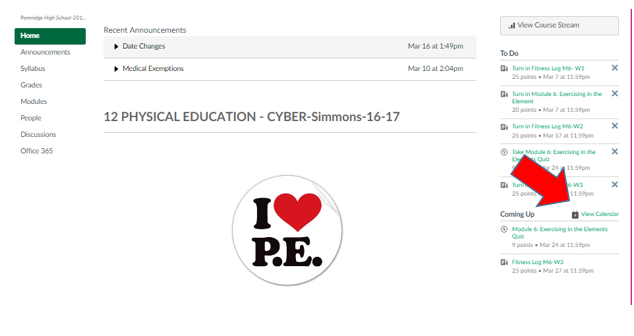
1. Calendar from the Classroom Homepage: Students can gain direct access to their course calendar from the homepage of the individual course. This makes focusing on just one class easier. Screenshot credit to Roberta Simmons!calendar arrow.PNG.

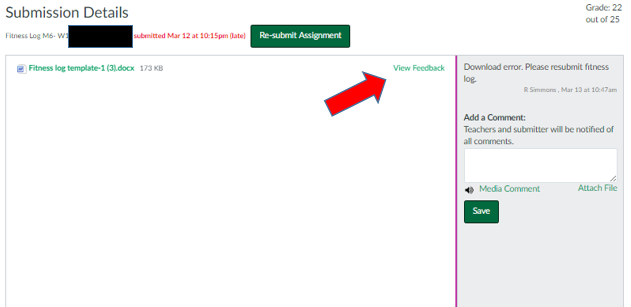
2. Specific Feedback on Assignments: Students can see detailed feedback on an assignment in the by clicking on the View Feedback Button from the submission details page. Below is an image of the page and button to press. Linked here are full directions.

submission details.PNG

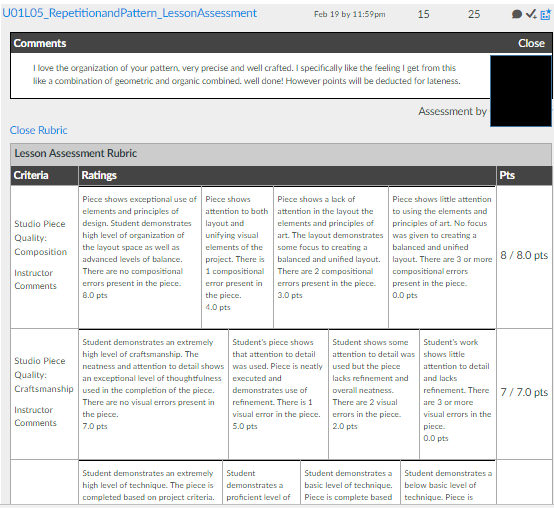
3. General Comments on An Assignment: Students can also see general comments and rubric details from the Grades link in course navigation. Make sure you have Grades accessible in your course navigation! Below is a snapshot of what they see and linked here are directions on how to access this information.
rubric.PNG

4. To Do and Coming Up Lists: These lists give students (and teachers) a quick glimpse into their courses. From the Dashboard, the list will include items from all courses. From a course homepage, the list will only include information for that course. Remember, the To-Do list includes items with a due date in the next seven days. The Coming Up list includes assignments and events that are coming up in the next seven days. For more info check out this resource. Screenshot credit to Heidi Kulik!
to do list.PNG

5. Notifications:  It is important to remind students that they can receive notifications from Canvas via text or email. Most students were shown this when they picked up their laptops, but it is worth reminding students of this helpful feature. Linked here is info on how to set-up Canvas notifications.


BONUS: SAVE THE DATE! 21st Century Learning Night is Tuesday, May 30th. Check out our new website. More details to come!


Have a great weekend everyone!


Friday, February 24, 2017

EdCamp Follow-Up


Friday Five- EdCamp Follow-Up

The high school's second EdCamp PD day was a great day of professional collaboration. This installment of the Friday Five is dedicated to highlighting and building upon some of the great conversation that occurred. 

1. Discussion Feature in Canvas:  As of my last count, 173 entries were made into the Discussion thread that was started on Canvas. This tool allowed people, who did not see each other during various sessions, to share insights and ideas with one another. It also created a valuable  resource for those who were not present Friday morning. Finally, it acts as a record of the day and continues to serve as a space for ongoing dialogue.  If you haven't used this tool in your classroom, give it a try. It is an effective way to further discussion on timely topics. Many people have asked me if it is difficult to grade a discussion. SpeedGrader groups a student's responses together. This offers an easy way to evaluate the number and quality of student responses. Below is a screenshot of what this looks like in SpeedGrader. Thanks Nicole Gordienko for allowing me to share your responses!


Check Out This Great Resource on creating valuable online discussions.


2. Google Integration:   Another FAQ was about how I embedded the EdCamp Grid  into a Canvas Page. While this has long been possible (click here for directions), the new Google LTI makes this process even simpler. If you are interested in having the new Live Beta (this means it is not perfect and is being tested broadly to fine tune) of the new LTI added to your course, email or see me. This will allow you to create cloud based assignments for students. Canvas and Google will make a copy of a Google Doc automatically for a student. The student can work on the assignment right in Canvas and then submit with a single click. Here is more info on this type of assignment. Thank you to Carol Ressler and Destiny Beck for piloting it with their classes!

3. PBL/Best Practices:  Many sessions got major kudos in the online discussion, but one in particular that received a lot of attention was Frank Flanagan and Lisa Russell's session on Project Based Learning. Frank created a Smore of resources for PBL. This session, and the resources shared,  couples nicely with the discussion facilitated by Deb Cotner-Davis and Ray Ott. As we finish out our second decade of the 21st century, we need to continue to find ways to make schools relevant for our student's futures. The ideas shared in these sessions help to do this.


4. Twitter for PD and PR:  There was a lively discussion of how Twitter can be used to further professional learning and to create a positive image of our school. Lisa Maderic offered a great suggestion of adding a reminder to your phone to send a Tweet once a week. Imagine if each teacher tweeted one positive example of the great things going on at PHS to @PennridgeHS and @pennridgesd! The more we share the wonderful things being done in our classes with the community, the more support we will receive.  Here is a blog post Scott Hegen created on the subject.


5.Technology and the Tactile:  Finally, I am so sorry I missed Eric Kehs and Matt Simkins' session that incorporated kinesthetic activities and tech tools. The supervisors are reporting an increased demand for shaving cream.  Everyone who attended had a great time and was reminded that technology is one of the many tools that can be used to create a meaningful and effective learning experience for students. Eric and Matt shared great examples and here is an article about some other effective strategies to get students moving in your classroom.

.

Friday, January 27, 2017

New Semester- New Updates and Features in Canvas!


This Friday Five includes 1 reminder, 1 new feature you may want to try now, and 3 new features that I am looking for some teachers to test out with me!


Reminder!

1. Semester Switch:  Semester teachers please remember that you must publish your new courses for students to gain access. If you taught the same course in semester 1 you can easily copy your content from last semester’s course shell into this semester’s. Here are directions. If you need help stop by room 307 any period and I can help you! It only takes a few minutes to save yourself HOURS of work


New Feature!


2.  Announcements can now appear on your Course Home Page if Front Page is set as your Course Home Page. If you would like to see a live example of this check out the Professional Learning course shared with all teachers. Directions on how to do this can be found here.


Testers Needed!

3. Mastery Paths is a new feature available through Canvas that allows a teacher to create customized learning experiences based on student performance and student interest. For example, in a math classroom, the teacher can give her class a pre-test on a new skill utilizing Canvas Quizzes. Each student will then be directed to assignments or activities within Canvas based upon his/her individual performance on the pre-test. If Sally Student scores 100% on the pre-test, she will be directed to an enrichment activity. If Charles Child earns a 70%, he will be directed to instructional content. Finally, if Kim Kid scores below 60% she will be directed to remediation materials. Students can even be given choices in which type of additional assignment they want: video, worksheet, conference with the teacher, etc.
Check out this video for more details


542 - Mastery Paths from Canvas LMS on Vimeo.

Please contact me if you are interested in testing out this feature in one of your classes. This new feature is a great way to further personalize students’ learning experiences.


4. New, Improved Google Integration Canvas has worked with Google to improve the integration between the two platforms. Google Classroom lovers will enjoy the new Canvas features that allow a Google Doc to be distributed to each student through Canvas. Students can work on that Google Doc within Canvas and submit with one simple button. The submission is then rendered to SpeedGrader so it can be graded simply and pushed to PowerSchool.

Please contact me if you are interested in testing out this feature in one of your classes. Canvas and Google...doesn’t get much better.

5. New, Improved 365 Integration If you know me you know that I am a Google Girl, but I have to admit 365 is pretty awesome. Canvas and Microsoft have teamed up to improve the integration between these two systems. Just like with Google, the integration now allows for Cloud based assignments so PowerPoint, Word Docs, or Excel Files can be distributed to students and collected all through Canvas.

Please contact me if you are interested in testing out this feature in one of your classes. Canvas and 365...providing more options for the 21st century teacher and learner.


Thanks for reading and please contact me via email, phone (ext 3070), or in person in room 307 with any Canvas or other tech integration questions.

Some Timely Reminders

Middle School Start of the Year Checklist High School Start of the Year Checklist How to Push Grades to PTP Canvas Credentials: what y...