Monday, August 28, 2017

Welcome Back- Year Two of Canvas

Welcome Back!


Just a Five quick pieces of information as we start Year Two of our Canvas implementation.


  1. Linked here is the start of the year checklist for Canvas. It is similar to the checklist I provided last year, but includes a few demonstration videos and some information on new features in Canvas.
  2. Please remember that there is a Module on Year Two goals in the Professional Learning Course. Many of you completed the module at the end of last year.  If you haven’t competed this, it would be helpful to do so as we begin Year Two with the following Canvas goals:
    •       Demonstrate Mastery of the Year One Goals (due dates on calendar, daily agenda,    upload handouts, use syllabus page)
    •  Utilize Modules for Course organization.
  3. If you are not enrolled in the professional learning course, please email me and I will add you right away!
  4. Please remember that student Canvas log-in credential information can be found under the “For Students” tab on the high school homepage and here. Teachers can see student log-in credentials by clicking on the backpack icon in PowerSchool, selecting the student’s last name and then selecting “logins” from the drop down menu.  Canvas usernames are the students’ computer username followed by @psd.pennridge.org and the password is their network password.
  5. I will be in the CAP room (307) most periods of the day this year. Feel free to stop on in whenever you need help with Canvas or other tech integration needs. There will be students in the room, but they are working on cyber coursework, so don’t feel like you are disrupting them!

Thursday, June 8, 2017

Canvas Year End

Canvas Year End

      Preparing for 2017-18


The basic info you need to regarding Canvas Year End!
1. You will have editing access to your current (Year Long; Semester 2) courses until June 30th.
2. After June 30th, your PowerSchool courses will turn to “read only”. This means all of the content stays, but you won't be able to edit anything in the course. You will be able to move content into a new course and regain full editing capabilities!
3. You may move any of your course content into a course shell (click here for directions on creating a course shell and here for directions on how to copy content from a Canvas Course into that shell!***). This will be best to do if you would like to get working on your 17-18 courses before the PowerSchool roll-over. Once the PowerSchool roll-over occurs, you will have your official course shells for the year and can import content into the course from either a shell course, your 16-17 courses, or from the Commons. 
4. Please see me if you have any questions regarding Canvas year end! Thank you all for your hard work with Canvas this year. You all did a fantastic job with our first year...can't wait to see what everyone does next year!
5. On Monday, information regarding our Year Two goals will be shared. 

***I recommend that you use this method to move content rather than hitting the “Copy Course” button found in Course Settings. “Copy Course” will go into the 16-17 school year which will close June 30th.  A course shell will never automatically close. 

Friday, May 12, 2017

Quick Follow-Up to Canvas Survey

First, thank you all for completing the Canvas survey. We are still going through the responses, but there were a couple of items that I thought I would quickly address.


Friday Five: Quick Responses to Canvas Survey Items!

  1. Finding Student Credentials:  Next year, the login sheet that students get on the first day of school will clearly indicate that student’s Canvas credentials and 365 credentials are the same. Students also have access to the log-in credential  structure on the high school home page under the Student’s tab. These credentials are slightly different than what we have used in the past.
  1. Canvas for Clubs: One response asked about using Canvas for clubs. This is absolutely a possibility and something that is already being done by Key Club and NHS. Any teacher can create a course from the “Start a New Course” button on the lower right of the teacher dashboard. Advisors can then either give students a link to join the course or add each member to the course manually. If you are an advisor and would like help with this, let me know!
  1. Quiz Security:  There were a few comments about creating secure environments for testing on a computer.. There are ways to password protect and lock a quiz. Please see me if you would like to explore these features. People also asked about lockdown browsers which would disable other functions on students’ computer while they complete online assessments. This issue continues to be explored.
  1. Canvas in the Summer🌊:  This was a big question: Will I be able to work in Canvas over the summer?  The answer is yes! Your 2017-18 PowerSchool created courses will not be there until the year roll-over occurs (this usually happens sometime in July), but you will be able to build in a shell course and then move everything over. You will also be able to copy everything from your current PowerSchool created courses. Please note, that you will not want to build in your 16-17 PowerSchool courses after June 30th. At this time they become read only which means that you can see and copy everything, but you will  not be able to edit those courses. Here is a video that demonstrates how to copy a course and here are printable directions.
  2. Further Support:   I will be in the CAP room for most of the school day next year. I am in the room to help support our cyber program and to help teachers with Canvas and other tech integration questions. Please do not hesitate to call, email, or stop in. Taking this step is the best way to make sure your individual needs and questions are being addressed. If you don’t have time to stop in or don’t know how to set something up, tell me what you want to do and I can hop into your course and set it up for you or walk you through the steps via phone, email, or one of my awesome videos!πŸ˜ƒπŸ˜ƒπŸ˜ƒ

Friday, April 7, 2017

What Does She Do In There All Day?

About once a week a student shows up at my door saying, “Wow, this room has a carpet...what goes on in here?” Who knew that a carpet in a classroom would be worthy of such note! I laugh and explain the purpose of the CAP room.

How many of you have had similar thoughts and also wonder, “What does Cara do in there all day?”

Well, in addition to helping teachers utilize Canvas and other technology integration tools, I am working to build our district's cyber program. (I would be remiss to not take a moment to thank the Guidance Department, the HS Admin team, the Entire Curriculum Office, and Roberta Simmons for their help with all of this!)

Pennridge School District can now provide a cyber option for students in Kindergarten through Twelfth Grade!

How you can help? If you ever hear of a student considering cyber...let the student's guidance counselor know!

For an overview of the program watch this video made with Adobe Spark


This Friday Five is 5 facts about our cyber program with some tech tools examples and resources thrown in.


Pennridge Online Learning is….


1. Predicated on Comprehensive Plan goals

    • The Comprehensive Plan includes the following goal: Offer opportunities for students to take courses using a blended model with cyber courses.
2. Personalized and designed to meet the needs of all learners
    • Students who are participating in Pennridge Online Learning have the flexibility of taking some courses online and some courses face-to-face
    • Check out our Website built with the new, easier to use Google Sites
3. Proving Effective 
    • Early data indicates that our new program is providing a better learning experience for our online learners than our previous program  
2014-15 First Semester Grades
2016-17 First Semester Grades
    • When you factor out the students who were "grandfathered" into cyber or admitted outside of the new procedures, the failure rate drops to about 2%
4. Providing Cost Avoidance
    • Each time a student leaves PSD to attend a cyber-charter money leaves with them. The table below illustrates how our cyber program can provide savings. 

5. Promoting College and Career Readiness

IMG_0073.jpg

Friday, March 24, 2017

Student Communication and Feedback in Canvas

Ryan Wallace, like all great social studies teachers, can't help but pick up reading materials along his travels. Recently, on a field trip with FBLA to Bucks County Community College, Ryan picked up the student newspaper. Was he longing for his college years, feeling nostalgia for the printed press, or lured by the lead story? It was clearly the story, "The In's and Out's of Canvas." Channeling his inner Ed Johnson (if you are too new to our faculty to get this reference, ask one of us older folks), Ryan passed the article on to me! It focuses on the ease students have tracking their course progress when professors are utilizing Canvas.


Inspired by the article (thank you Ryan!) and some recent FAQS, this Friday Five is a list of tips you can share with your students to help them better utilize the interface. These tips are also being shared with students via their “Class of” course!


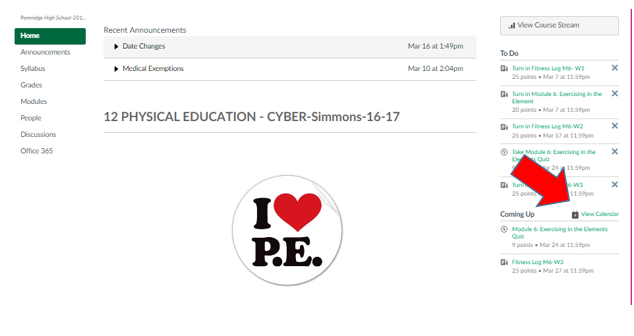
1. Calendar from the Classroom Homepage: Students can gain direct access to their course calendar from the homepage of the individual course. This makes focusing on just one class easier. Screenshot credit to Roberta Simmons!calendar arrow.PNG.

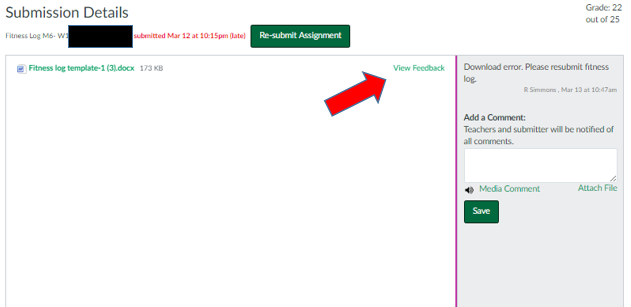
2. Specific Feedback on Assignments: Students can see detailed feedback on an assignment in the by clicking on the View Feedback Button from the submission details page. Below is an image of the page and button to press. Linked here are full directions.

submission details.PNG

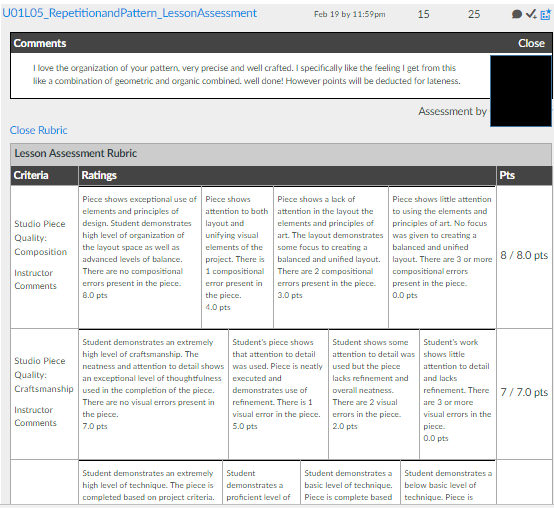
3. General Comments on An Assignment: Students can also see general comments and rubric details from the Grades link in course navigation. Make sure you have Grades accessible in your course navigation! Below is a snapshot of what they see and linked here are directions on how to access this information.
rubric.PNG

4. To Do and Coming Up Lists: These lists give students (and teachers) a quick glimpse into their courses. From the Dashboard, the list will include items from all courses. From a course homepage, the list will only include information for that course. Remember, the To-Do list includes items with a due date in the next seven days. The Coming Up list includes assignments and events that are coming up in the next seven days. For more info check out this resource. Screenshot credit to Heidi Kulik!
to do list.PNG

5. Notifications:  It is important to remind students that they can receive notifications from Canvas via text or email. Most students were shown this when they picked up their laptops, but it is worth reminding students of this helpful feature. Linked here is info on how to set-up Canvas notifications.


BONUS: SAVE THE DATE! 21st Century Learning Night is Tuesday, May 30th. Check out our new website. More details to come!


Have a great weekend everyone!


Friday, February 24, 2017

EdCamp Follow-Up


Friday Five- EdCamp Follow-Up

The high school's second EdCamp PD day was a great day of professional collaboration. This installment of the Friday Five is dedicated to highlighting and building upon some of the great conversation that occurred. 

1. Discussion Feature in Canvas:  As of my last count, 173 entries were made into the Discussion thread that was started on Canvas. This tool allowed people, who did not see each other during various sessions, to share insights and ideas with one another. It also created a valuable  resource for those who were not present Friday morning. Finally, it acts as a record of the day and continues to serve as a space for ongoing dialogue.  If you haven't used this tool in your classroom, give it a try. It is an effective way to further discussion on timely topics. Many people have asked me if it is difficult to grade a discussion. SpeedGrader groups a student's responses together. This offers an easy way to evaluate the number and quality of student responses. Below is a screenshot of what this looks like in SpeedGrader. Thanks Nicole Gordienko for allowing me to share your responses!


Check Out This Great Resource on creating valuable online discussions.


2. Google Integration:   Another FAQ was about how I embedded the EdCamp Grid  into a Canvas Page. While this has long been possible (click here for directions), the new Google LTI makes this process even simpler. If you are interested in having the new Live Beta (this means it is not perfect and is being tested broadly to fine tune) of the new LTI added to your course, email or see me. This will allow you to create cloud based assignments for students. Canvas and Google will make a copy of a Google Doc automatically for a student. The student can work on the assignment right in Canvas and then submit with a single click. Here is more info on this type of assignment. Thank you to Carol Ressler and Destiny Beck for piloting it with their classes!

3. PBL/Best Practices:  Many sessions got major kudos in the online discussion, but one in particular that received a lot of attention was Frank Flanagan and Lisa Russell's session on Project Based Learning. Frank created a Smore of resources for PBL. This session, and the resources shared,  couples nicely with the discussion facilitated by Deb Cotner-Davis and Ray Ott. As we finish out our second decade of the 21st century, we need to continue to find ways to make schools relevant for our student's futures. The ideas shared in these sessions help to do this.


4. Twitter for PD and PR:  There was a lively discussion of how Twitter can be used to further professional learning and to create a positive image of our school. Lisa Maderic offered a great suggestion of adding a reminder to your phone to send a Tweet once a week. Imagine if each teacher tweeted one positive example of the great things going on at PHS to @PennridgeHS and @pennridgesd! The more we share the wonderful things being done in our classes with the community, the more support we will receive.  Here is a blog post Scott Hegen created on the subject.


5.Technology and the Tactile:  Finally, I am so sorry I missed Eric Kehs and Matt Simkins' session that incorporated kinesthetic activities and tech tools. The supervisors are reporting an increased demand for shaving cream.  Everyone who attended had a great time and was reminded that technology is one of the many tools that can be used to create a meaningful and effective learning experience for students. Eric and Matt shared great examples and here is an article about some other effective strategies to get students moving in your classroom.

.

Friday, January 27, 2017

New Semester- New Updates and Features in Canvas!


This Friday Five includes 1 reminder, 1 new feature you may want to try now, and 3 new features that I am looking for some teachers to test out with me!


Reminder!

1. Semester Switch:  Semester teachers please remember that you must publish your new courses for students to gain access. If you taught the same course in semester 1 you can easily copy your content from last semester’s course shell into this semester’s. Here are directions. If you need help stop by room 307 any period and I can help you! It only takes a few minutes to save yourself HOURS of work


New Feature!


2.  Announcements can now appear on your Course Home Page if Front Page is set as your Course Home Page. If you would like to see a live example of this check out the Professional Learning course shared with all teachers. Directions on how to do this can be found here.


Testers Needed!

3. Mastery Paths is a new feature available through Canvas that allows a teacher to create customized learning experiences based on student performance and student interest. For example, in a math classroom, the teacher can give her class a pre-test on a new skill utilizing Canvas Quizzes. Each student will then be directed to assignments or activities within Canvas based upon his/her individual performance on the pre-test. If Sally Student scores 100% on the pre-test, she will be directed to an enrichment activity. If Charles Child earns a 70%, he will be directed to instructional content. Finally, if Kim Kid scores below 60% she will be directed to remediation materials. Students can even be given choices in which type of additional assignment they want: video, worksheet, conference with the teacher, etc.
Check out this video for more details


542 - Mastery Paths from Canvas LMS on Vimeo.

Please contact me if you are interested in testing out this feature in one of your classes. This new feature is a great way to further personalize students’ learning experiences.


4. New, Improved Google Integration Canvas has worked with Google to improve the integration between the two platforms. Google Classroom lovers will enjoy the new Canvas features that allow a Google Doc to be distributed to each student through Canvas. Students can work on that Google Doc within Canvas and submit with one simple button. The submission is then rendered to SpeedGrader so it can be graded simply and pushed to PowerSchool.

Please contact me if you are interested in testing out this feature in one of your classes. Canvas and Google...doesn’t get much better.

5. New, Improved 365 Integration If you know me you know that I am a Google Girl, but I have to admit 365 is pretty awesome. Canvas and Microsoft have teamed up to improve the integration between these two systems. Just like with Google, the integration now allows for Cloud based assignments so PowerPoint, Word Docs, or Excel Files can be distributed to students and collected all through Canvas.

Please contact me if you are interested in testing out this feature in one of your classes. Canvas and 365...providing more options for the 21st century teacher and learner.


Thanks for reading and please contact me via email, phone (ext 3070), or in person in room 307 with any Canvas or other tech integration questions.

Thursday, January 12, 2017

Semester Switch and Canvas Drop-In Sessions


Many of you teach semester courses. Below are some steps you are going to want to take as the first semester ends and the second semester begins.

  1. Grades in your First Semester Course-  You will be able to continue to grade work and push those grades to Powerschool (if you are utilizing the grade push) until January 31st. This corresponds with the grading timeline that Alice sent out. After January 31st you will have read-only access to your course material. This means you can see all of your assignments, files, discussions, student work, etc. but you can’t edit within the course. To edit the content you would need to copy it into a new course (see #2)!

  1. Copy Course content to New Semester Course- If you teach the same course second semester you can easily copy all of your Semester 1 content to your new course. Here are directions on how to do this.

  1. Semester Course Content Next Year-  You will also be able to copy any course content from a semester course (or Year Long Courses, too) into the PowerSchool created courses you will teach next year. Don’t worry- Your work first semester will not disappear!

  1. Don’t forget to Publish Your Semester Two Courses-  You must publish your second semester courses just like you did semester one. Here are directions.

  1. Semester 2 Try Something New!-  Please stop in and see me in room 307 if you would like to review how you have used Canvas in semester 1 and discuss ways to expand upon your use in Semester 2.  Things to consider: collecting assignments through Canvas, Discussions, Modules, GradeBook Push, Group Assignments. These suggestions will all be explored in the opportunity which follows.

Friday, December 16, 2016

One More Week Until Winter Break!

We are in the home stretch. This Powtoons Video offers some suggestions on how to keep your students engaged and learning this next week!

Featured ideas include:


Friday, December 9, 2016

Using Twitter to fight the Winter Blues!

Friday Five 12/9/16

With the rush of the holidays, the reality that arctic air will soon be visiting, and the excitement of the students over the coming break, it can be easy to get into a December funk. I was feeling this way as I was trying to plan this Friday Five. Instead of skipping this week, I decided to search for some inspiration!  

My go-to source for inspiration from edu-rock stars is Twitter. So I sent out the following Tweet:


Of course, there are dangers in venturing onto social media. Once you log-in you can quickly find yourself lost in a series of clicks and end up on some inane PopSugar article like this one. Fortunately, I use Twitter only as a Professional Learning Community, so I was safe!  


Low and behold...I got some advice…. I got some inspiration….I was reminded that great reward comes from connecting with inspiring educators from across the globe.


So thank you Twittersphere for helping me get back in the groove!  


Friday Five Tips and the Tweets that Inspired Them!


1. It is all about the Badges

Gamification is a trend being implemented in and outside of the classroom. Those of you who completed the Canvas Beginners and Canvas Intermediate Courses were awarded badges. Consider adding Badges to your courses. Here is an overview article of how you can use badges. I am working on a PD course on how to build badges into your Canvas Courses. More information to follow!


2. You can earn a Microsoft Badge and Act 48!

Chris B. sent out an email last Friday alerting all faculty of this opportunity being offered for PSD Teachers. Here is what he wrote: “In order to help teachers satisfy their Act 48 requirements, an internet course through the Microsoft Education Community entitled “Microsoft in Education” has been posted to OTS.  This course reviews the basic operation of Office 365 and how it can be utilized in the classroom.  Following completion of this course 3 hours of Act 48 will be awarded.  Please use this link ,which directs you to the in district OTS system, if you are interested in this opportunity.”


3. More on Discussions!


We have explored Discussions in the past. But what does “focused” vs “threaded” mean exactly? Focused discussions ask students to reflect upon a single idea. For example, “Who is to blame for Romeo and Juliet’s deaths?”.  A threaded discussion is used to explore more complex ideas that may naturally break into sub-topics. For example, if the question is “Was the South’s secession justified?”, the discussion could quickly become threaded based upon political, economic, or cultural distinctions. This threaded discussion could be revisited throughout the course of a unit, while the focused example may be used a single assignment.  


4. Video may have killed the radio star, but video enlivens learning!  

Embedding videos into your Canvas Course is easy thanks to the integration of YouTube and the ease to upload your own video creations! But there are some important things to keep in mind. Here are some great tips on incorporating video into your classes.


5. Fast Track Videos 

Want to learn more about Canvas? Canvas has a series of videos designed to quickly give you key information or skills to utilize some of Canvas’ most popular features. We used a few in our training courses. The complete list of videos can be found here.

Some Timely Reminders

Middle School Start of the Year Checklist High School Start of the Year Checklist How to Push Grades to PTP Canvas Credentials: what y...