Friday, April 7, 2017

What Does She Do In There All Day?

About once a week a student shows up at my door saying, “Wow, this room has a carpet...what goes on in here?” Who knew that a carpet in a classroom would be worthy of such note! I laugh and explain the purpose of the CAP room.

How many of you have had similar thoughts and also wonder, “What does Cara do in there all day?”

Well, in addition to helping teachers utilize Canvas and other technology integration tools, I am working to build our district's cyber program. (I would be remiss to not take a moment to thank the Guidance Department, the HS Admin team, the Entire Curriculum Office, and Roberta Simmons for their help with all of this!)

Pennridge School District can now provide a cyber option for students in Kindergarten through Twelfth Grade!

How you can help? If you ever hear of a student considering cyber...let the student's guidance counselor know!

For an overview of the program watch this video made with Adobe Spark


This Friday Five is 5 facts about our cyber program with some tech tools examples and resources thrown in.


Pennridge Online Learning is….


1. Predicated on Comprehensive Plan goals

    • The Comprehensive Plan includes the following goal: Offer opportunities for students to take courses using a blended model with cyber courses.
2. Personalized and designed to meet the needs of all learners
    • Students who are participating in Pennridge Online Learning have the flexibility of taking some courses online and some courses face-to-face
    • Check out our Website built with the new, easier to use Google Sites
3. Proving Effective 
    • Early data indicates that our new program is providing a better learning experience for our online learners than our previous program  
2014-15 First Semester Grades
2016-17 First Semester Grades
    • When you factor out the students who were "grandfathered" into cyber or admitted outside of the new procedures, the failure rate drops to about 2%
4. Providing Cost Avoidance
    • Each time a student leaves PSD to attend a cyber-charter money leaves with them. The table below illustrates how our cyber program can provide savings. 

5. Promoting College and Career Readiness

IMG_0073.jpg

Friday, March 24, 2017

Student Communication and Feedback in Canvas

Ryan Wallace, like all great social studies teachers, can't help but pick up reading materials along his travels. Recently, on a field trip with FBLA to Bucks County Community College, Ryan picked up the student newspaper. Was he longing for his college years, feeling nostalgia for the printed press, or lured by the lead story? It was clearly the story, "The In's and Out's of Canvas." Channeling his inner Ed Johnson (if you are too new to our faculty to get this reference, ask one of us older folks), Ryan passed the article on to me! It focuses on the ease students have tracking their course progress when professors are utilizing Canvas.


Inspired by the article (thank you Ryan!) and some recent FAQS, this Friday Five is a list of tips you can share with your students to help them better utilize the interface. These tips are also being shared with students via their “Class of” course!


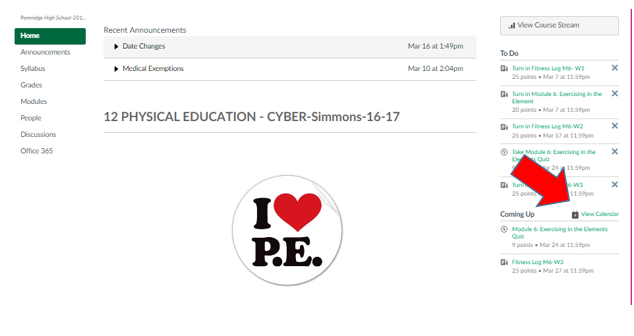
1. Calendar from the Classroom Homepage: Students can gain direct access to their course calendar from the homepage of the individual course. This makes focusing on just one class easier. Screenshot credit to Roberta Simmons!calendar arrow.PNG.

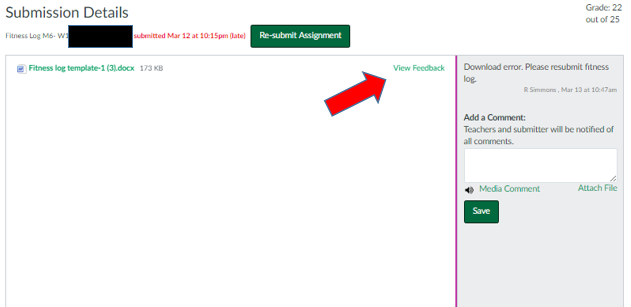
2. Specific Feedback on Assignments: Students can see detailed feedback on an assignment in the by clicking on the View Feedback Button from the submission details page. Below is an image of the page and button to press. Linked here are full directions.

submission details.PNG

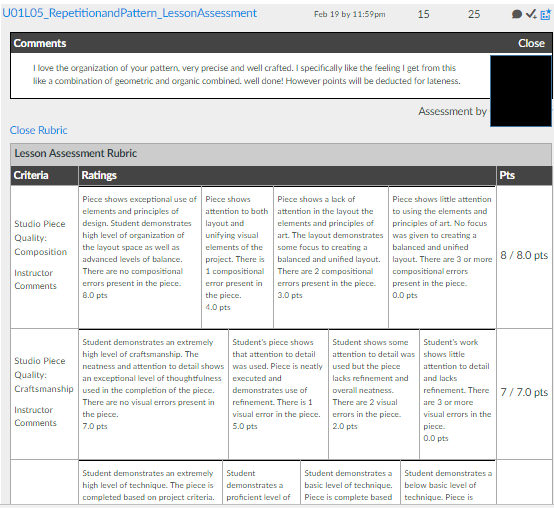
3. General Comments on An Assignment: Students can also see general comments and rubric details from the Grades link in course navigation. Make sure you have Grades accessible in your course navigation! Below is a snapshot of what they see and linked here are directions on how to access this information.
rubric.PNG

4. To Do and Coming Up Lists: These lists give students (and teachers) a quick glimpse into their courses. From the Dashboard, the list will include items from all courses. From a course homepage, the list will only include information for that course. Remember, the To-Do list includes items with a due date in the next seven days. The Coming Up list includes assignments and events that are coming up in the next seven days. For more info check out this resource. Screenshot credit to Heidi Kulik!
to do list.PNG

5. Notifications:  It is important to remind students that they can receive notifications from Canvas via text or email. Most students were shown this when they picked up their laptops, but it is worth reminding students of this helpful feature. Linked here is info on how to set-up Canvas notifications.


BONUS: SAVE THE DATE! 21st Century Learning Night is Tuesday, May 30th. Check out our new website. More details to come!


Have a great weekend everyone!


Friday, February 24, 2017

EdCamp Follow-Up


Friday Five- EdCamp Follow-Up

The high school's second EdCamp PD day was a great day of professional collaboration. This installment of the Friday Five is dedicated to highlighting and building upon some of the great conversation that occurred. 

1. Discussion Feature in Canvas:  As of my last count, 173 entries were made into the Discussion thread that was started on Canvas. This tool allowed people, who did not see each other during various sessions, to share insights and ideas with one another. It also created a valuable  resource for those who were not present Friday morning. Finally, it acts as a record of the day and continues to serve as a space for ongoing dialogue.  If you haven't used this tool in your classroom, give it a try. It is an effective way to further discussion on timely topics. Many people have asked me if it is difficult to grade a discussion. SpeedGrader groups a student's responses together. This offers an easy way to evaluate the number and quality of student responses. Below is a screenshot of what this looks like in SpeedGrader. Thanks Nicole Gordienko for allowing me to share your responses!


Check Out This Great Resource on creating valuable online discussions.


2. Google Integration:   Another FAQ was about how I embedded the EdCamp Grid  into a Canvas Page. While this has long been possible (click here for directions), the new Google LTI makes this process even simpler. If you are interested in having the new Live Beta (this means it is not perfect and is being tested broadly to fine tune) of the new LTI added to your course, email or see me. This will allow you to create cloud based assignments for students. Canvas and Google will make a copy of a Google Doc automatically for a student. The student can work on the assignment right in Canvas and then submit with a single click. Here is more info on this type of assignment. Thank you to Carol Ressler and Destiny Beck for piloting it with their classes!

3. PBL/Best Practices:  Many sessions got major kudos in the online discussion, but one in particular that received a lot of attention was Frank Flanagan and Lisa Russell's session on Project Based Learning. Frank created a Smore of resources for PBL. This session, and the resources shared,  couples nicely with the discussion facilitated by Deb Cotner-Davis and Ray Ott. As we finish out our second decade of the 21st century, we need to continue to find ways to make schools relevant for our student's futures. The ideas shared in these sessions help to do this.


4. Twitter for PD and PR:  There was a lively discussion of how Twitter can be used to further professional learning and to create a positive image of our school. Lisa Maderic offered a great suggestion of adding a reminder to your phone to send a Tweet once a week. Imagine if each teacher tweeted one positive example of the great things going on at PHS to @PennridgeHS and @pennridgesd! The more we share the wonderful things being done in our classes with the community, the more support we will receive.  Here is a blog post Scott Hegen created on the subject.


5.Technology and the Tactile:  Finally, I am so sorry I missed Eric Kehs and Matt Simkins' session that incorporated kinesthetic activities and tech tools. The supervisors are reporting an increased demand for shaving cream.  Everyone who attended had a great time and was reminded that technology is one of the many tools that can be used to create a meaningful and effective learning experience for students. Eric and Matt shared great examples and here is an article about some other effective strategies to get students moving in your classroom.

.

Friday, January 27, 2017

New Semester- New Updates and Features in Canvas!


This Friday Five includes 1 reminder, 1 new feature you may want to try now, and 3 new features that I am looking for some teachers to test out with me!


Reminder!

1. Semester Switch:  Semester teachers please remember that you must publish your new courses for students to gain access. If you taught the same course in semester 1 you can easily copy your content from last semester’s course shell into this semester’s. Here are directions. If you need help stop by room 307 any period and I can help you! It only takes a few minutes to save yourself HOURS of work


New Feature!


2.  Announcements can now appear on your Course Home Page if Front Page is set as your Course Home Page. If you would like to see a live example of this check out the Professional Learning course shared with all teachers. Directions on how to do this can be found here.


Testers Needed!

3. Mastery Paths is a new feature available through Canvas that allows a teacher to create customized learning experiences based on student performance and student interest. For example, in a math classroom, the teacher can give her class a pre-test on a new skill utilizing Canvas Quizzes. Each student will then be directed to assignments or activities within Canvas based upon his/her individual performance on the pre-test. If Sally Student scores 100% on the pre-test, she will be directed to an enrichment activity. If Charles Child earns a 70%, he will be directed to instructional content. Finally, if Kim Kid scores below 60% she will be directed to remediation materials. Students can even be given choices in which type of additional assignment they want: video, worksheet, conference with the teacher, etc.
Check out this video for more details


542 - Mastery Paths from Canvas LMS on Vimeo.

Please contact me if you are interested in testing out this feature in one of your classes. This new feature is a great way to further personalize students’ learning experiences.


4. New, Improved Google Integration Canvas has worked with Google to improve the integration between the two platforms. Google Classroom lovers will enjoy the new Canvas features that allow a Google Doc to be distributed to each student through Canvas. Students can work on that Google Doc within Canvas and submit with one simple button. The submission is then rendered to SpeedGrader so it can be graded simply and pushed to PowerSchool.

Please contact me if you are interested in testing out this feature in one of your classes. Canvas and Google...doesn’t get much better.

5. New, Improved 365 Integration If you know me you know that I am a Google Girl, but I have to admit 365 is pretty awesome. Canvas and Microsoft have teamed up to improve the integration between these two systems. Just like with Google, the integration now allows for Cloud based assignments so PowerPoint, Word Docs, or Excel Files can be distributed to students and collected all through Canvas.

Please contact me if you are interested in testing out this feature in one of your classes. Canvas and 365...providing more options for the 21st century teacher and learner.


Thanks for reading and please contact me via email, phone (ext 3070), or in person in room 307 with any Canvas or other tech integration questions.

Thursday, January 12, 2017

Semester Switch and Canvas Drop-In Sessions


Many of you teach semester courses. Below are some steps you are going to want to take as the first semester ends and the second semester begins.

  1. Grades in your First Semester Course-  You will be able to continue to grade work and push those grades to Powerschool (if you are utilizing the grade push) until January 31st. This corresponds with the grading timeline that Alice sent out. After January 31st you will have read-only access to your course material. This means you can see all of your assignments, files, discussions, student work, etc. but you can’t edit within the course. To edit the content you would need to copy it into a new course (see #2)!

  1. Copy Course content to New Semester Course- If you teach the same course second semester you can easily copy all of your Semester 1 content to your new course. Here are directions on how to do this.

  1. Semester Course Content Next Year-  You will also be able to copy any course content from a semester course (or Year Long Courses, too) into the PowerSchool created courses you will teach next year. Don’t worry- Your work first semester will not disappear!

  1. Don’t forget to Publish Your Semester Two Courses-  You must publish your second semester courses just like you did semester one. Here are directions.

  1. Semester 2 Try Something New!-  Please stop in and see me in room 307 if you would like to review how you have used Canvas in semester 1 and discuss ways to expand upon your use in Semester 2.  Things to consider: collecting assignments through Canvas, Discussions, Modules, GradeBook Push, Group Assignments. These suggestions will all be explored in the opportunity which follows.

Friday, December 16, 2016

One More Week Until Winter Break!

We are in the home stretch. This Powtoons Video offers some suggestions on how to keep your students engaged and learning this next week!

Featured ideas include:


Friday, December 9, 2016

Using Twitter to fight the Winter Blues!

Friday Five 12/9/16

With the rush of the holidays, the reality that arctic air will soon be visiting, and the excitement of the students over the coming break, it can be easy to get into a December funk. I was feeling this way as I was trying to plan this Friday Five. Instead of skipping this week, I decided to search for some inspiration!  

My go-to source for inspiration from edu-rock stars is Twitter. So I sent out the following Tweet:


Of course, there are dangers in venturing onto social media. Once you log-in you can quickly find yourself lost in a series of clicks and end up on some inane PopSugar article like this one. Fortunately, I use Twitter only as a Professional Learning Community, so I was safe!  


Low and behold...I got some advice…. I got some inspiration….I was reminded that great reward comes from connecting with inspiring educators from across the globe.


So thank you Twittersphere for helping me get back in the groove!  


Friday Five Tips and the Tweets that Inspired Them!


1. It is all about the Badges

Gamification is a trend being implemented in and outside of the classroom. Those of you who completed the Canvas Beginners and Canvas Intermediate Courses were awarded badges. Consider adding Badges to your courses. Here is an overview article of how you can use badges. I am working on a PD course on how to build badges into your Canvas Courses. More information to follow!


2. You can earn a Microsoft Badge and Act 48!

Chris B. sent out an email last Friday alerting all faculty of this opportunity being offered for PSD Teachers. Here is what he wrote: “In order to help teachers satisfy their Act 48 requirements, an internet course through the Microsoft Education Community entitled “Microsoft in Education” has been posted to OTS.  This course reviews the basic operation of Office 365 and how it can be utilized in the classroom.  Following completion of this course 3 hours of Act 48 will be awarded.  Please use this link ,which directs you to the in district OTS system, if you are interested in this opportunity.”


3. More on Discussions!


We have explored Discussions in the past. But what does “focused” vs “threaded” mean exactly? Focused discussions ask students to reflect upon a single idea. For example, “Who is to blame for Romeo and Juliet’s deaths?”.  A threaded discussion is used to explore more complex ideas that may naturally break into sub-topics. For example, if the question is “Was the South’s secession justified?”, the discussion could quickly become threaded based upon political, economic, or cultural distinctions. This threaded discussion could be revisited throughout the course of a unit, while the focused example may be used a single assignment.  


4. Video may have killed the radio star, but video enlivens learning!  

Embedding videos into your Canvas Course is easy thanks to the integration of YouTube and the ease to upload your own video creations! But there are some important things to keep in mind. Here are some great tips on incorporating video into your classes.


5. Fast Track Videos 

Want to learn more about Canvas? Canvas has a series of videos designed to quickly give you key information or skills to utilize some of Canvas’ most popular features. We used a few in our training courses. The complete list of videos can be found here.

Friday, November 18, 2016

11.18.16- Daily Agenda, Calendar, Community, To Do List, Log-ons

1. Daily Agenda-  While we are all using Canvas in our classes and implementing the four goals, we do have great flexibility in how we accomplish these tasks. Staci L is utilizing the Redirect Tool discussed in the 10.14 Friday Five to help her students easily access her Daily Agenda. She created a Course Navigation link to a Canvas Page she created called Daily Agenda. You can see what it looks like here.  Now her students can click on the link in her course navigation and be taken directly to information on each day’s activities. Brilliant idea and one that I will add to the  Ways to Post the Daily Agenda list.
2. To Turn In or To Complete, That is the Question-  Canvas is constantly improving and responding to user feedback. Beginning this Saturday, students’ To Do lists will be changing slightly. Now assignments that are “No Points” or “No Submission”  will be preceded with the word “Complete” and assignments that need to be submitted will be preceded with the words “Turn In”. This will make it clearer to students what type of action they need to take on an assignment created by a teacher. You can see what this looks like here.
3. Calendars- While the universal calendar for courses is extremely helpful there is a word of caution that needs to be shared with teachers and students alike.  Only 10 calendars can display on the calendar grid at one time. Many students may be managing more than 10 calendars as more and more clubs are utilizing Canvas Courses. Please remind students to make sure that they are mindful of which calendars are “clicked” on. Here is more information on how to filter calendars.
4. Canvas Community Groups- Are you interested in connected with other educators who are utilizing Canvas in their classrooms? There are hundreds of user groups that you can join to learn more about how teachers in your content area or with your interests are implementing Canvas and 21st century learning in their classrooms. Click here for information about these groups.
5. Student Log-in Directions-  Many students are forgetting how to log-in to Canvas when they have a loaner laptop. Please remind students that student log-in directions can be found under the Students Tab on the High School Homepage. I have included them here for your convenience. Teachers can find student login credentials on PowerSchool. Click on the Backpack icon for the period the student is in. Next select the student and finally select Logins from the drop down menu. Canvas credentials are the student’s computer username followed by the same @tag as your Canvas Credential. The password is their network password.

Friday, November 4, 2016

11.4.16 Grading Periods, Numbers to Brag About

Friday Five(ish)-


  1. Working with Grading Periods: The attached and linked PDF has a list of 5 bits of info regarding switching between quarters in Canvas. Please check it out!
  2. Data Worth Celebrating: We made it through the first quarter and everyone is working hard to learn how to implement Canvas in their classrooms. So, for the last 4 items I am including some amazing stats that demonstrate all of your hard work!
Since the start of the school year:
  • 2,744 Assignments have been created in Canvas
  • 1,285 Discussion topics have been created (note: this is not a year one goal!!!)
  • 8,618 Files have been uploaded
  • 110 Media recordings have been added to courses

Friday, October 28, 2016

10.28.16- CK-12, Nearpod, OpenEd, Graph Builder, and More


EduApps Edition-

What is EduAppsCenter.com?  EduApps is a collection of educational applications that can be integrated into learning management systems. Some are free and some require subscriptions or licenses. Feel free to browse the Apps and let me know if there are any you would like to have added to your course or to a test course (I recommend doing that first so you can test the value of the integration).

Why Embed or Integrate Apps?  Embedding Apps helps to keep your students in one location and discourage wandering behaviors! If an app is built into your Canvas course students are not having to go elsewhere to complete assignments or find resources which further reinforces Canvas as the central hub of their learning.

Below is a partial list of Apps that have been installed or, in the case of Nearpod, could be installed on our instance. Like all products, there are some great resources included in these integrations and there are some that are less than great. Make sure to thoroughly vet any resource that you decide to use with a class.  

  1. CK-12- I know this tool is used by some science and math teacher. You can know add “high quality, free, teacher created and vetted STEM content without ever leaving” Canvas. Here are CK-12 created instructions on how to embed a CK-12 resource into a Canvas assignment.
  2. NearpodIf you have a Gold membership to Nearpod you can embed your Nearpod lessons directly into a Canvas assignment. Some of the benefits of this include: fewer clicks for students and the ability to maintain Canvas as your central classroom hub. If you have a Gold membership and would like me to install the integration in your courses let me know. The second part of this resource explains how to embed a Nearpod lesson into Canvas.
  3. OpenEd- OpenEd has “the largest FREE K-12 resource library with videos, assessments, games and homework assignments, all built from quality publishers and sorted by effectiveness.”  Many of these resources can be assigned directly into Canvas.
  4. Graph Builder- This app has been added to the list of external tools available within the Rich Content Editor. To access it, select Graph Builder from  the V drop down menu found in the Rich Content Editor within all aspects of Canvas- Pages, Quizzes, Assignments, Discussions. It can be used by teachers or students to “define graphs based on simple or complex equations and chart them dynamically.”
  5. Can any tools that aren’t apps be integrated? Yes, look at last week’s Friday Five to see how to include links in course navigation. You can also check to see if a resource has a built in ability to share to an LMS. For example, one of my favorites, EdPuzzle, provides HTML code that can be added to a page or assignment in Canvas. I will place an example in the Friday Five Module in the Professional Learning Course as an example.

Friday, October 14, 2016

10.14.16 Redirect tool, Collaborations, Discussions, Home Page, Video upload

Five Cool Things Teachers at Pennridge are Doing with Canvas…

  1. Using the Redirect Tool to Customize Course Navigation-  Alex S. has used the redirect tool to add IXLPollEv, and Kahoot student access to his course navigation. This can be done with nearly any Web 2.0 tool. The advantage is that your students get quick access to these tools without having to leave Canvas. Here is a quick video using Socrative as an example that shows you how to add links of frequently used tools to your course navigation.
  2. Using Conferences and Discussions for Synchronous Collaboration-  Charlie L. used the Conference feature on Canvas to create a real-time viewing party for the first Presidential Debate. Gifted students, under the direction of Keith V , have used the Discussion board feature for a similar debate screening. Here is an overview of Conferences and here is an overview of Discussions.
  3. Allowing Cross-Period Collaboration with Discussions-  While the examples shared in number 2 were utilizing synchronous collaboration, Discussions can also be used to allow asynchronous collaborationJulia G is utilizing the Discussion feature to allow all students reading a particular novel in her multiple periods of American Literature to collaborate. This way students who aren’t in the same class, but are reading the same work, can share insights, resources, and questions.
  4. Creating an Explanation of Terms PageAmy C realized that her students were confused about where to find things in her course so she created a home page that serves as a cheat sheet of where to look for specific course features. Here is a screenshot of her Chemistry Home Page.
  5. Performance TasksJoJean G had her orchestra students use their webcams to record a video of themselves performing a work of music. They then uploaded the file to an assignment in Canvas so JoJean could watch, evaluate, and provide feedback within Canvas.  Here are directions that students could use to upload a video file to an assignment.

Some Timely Reminders

Middle School Start of the Year Checklist High School Start of the Year Checklist How to Push Grades to PTP Canvas Credentials: what y...